E7. Passthrough AR: Tracking & Anchors

Learning Outcomes
- Explain tracking and spatial registration in passthrough AR. Describe device pose tracking, environmental tracking, coordinate frames, jitter, drift, relocalization, and how they affect alignment of virtual engineering content with the physical workspace.
- Distinguish session state from individual trackable state. Explain how overall
AR Sessionstate differs from thetrackingStatereported by an anchor, plane, tracked image, bounding box, or other trackable.- Explain image- and marker-based tracking and its provider limitations. Distinguish AR Foundation reference-image tracking from Quest 3 camera-based QR, ArUco, ChArUco, and custom computer-vision workflows.
- Inspect and use
AR Anchor Managerand the MR Template anchor lifecycle. Locate the manager, inspect runtimeARAnchorobjects, and operate the existing spawn, save, load, delete, and erase workflow.- Distinguish local anchors, persistence, active deletion, and persistent erasure. Explain when local anchoring occurs, when persistence is optional, and how Save, Load, Delete All, and Erase differ.
- Inspect
AR Bounding Box Managerand interpret approximate bounds and classifications. Compare scene volumes with the physical room and treat classifications as hints rather than proof of suitability.
Spatial Registration
Spatial registration is the perceived alignment between virtual content and the physical environment. A virtual engineering model may have correct Unity coordinates yet still appear poorly registered if tracking drifts, relocalizes incorrectly, or receives insufficient environmental information. Tracking is a coordinated stack of device pose estimation, environment understanding, reference frames, and application logic. Reliable engineering applications must evaluate how each layer contributes to final placement rather than assuming that visible content is automatically stable or accurate.
This session continues from the E6 working scene. Reuse the existing Unity MR Template configuration, passthrough, XR Origin,
AR Session, Object Spawner, Spawned Objects Manager,AR Anchor Manager,AR Bounding Box Manager,AR Feature Controller,PermissionsManager, Hand Menu Setup MR Template Variant, Spatial Panel Manipulator, existing XRI interaction, and any prepared engineering prefab.
Engineering Use Cases
Stable spatial registration supports many engineering workflows, but acceptable error depends on the task.
- Workstation Visualization: Place an engineering model on a confirmed table to inspect scale, access, and orientation.
- Guided Assembly: Keep instructions and highlighted components near a physical work area while the user changes viewpoint.
- Maintenance Support: Attach labels, warnings, or procedural panels to a meaningful location near equipment.
- Design Review: Restore a virtual prototype to the same room or workstation across sessions where persistence is supported.
- Context-Aware Placement: Use scene regions to propose a workstation, then confirm and anchor the final pose.
- Hazard and Clearance Visualization: Align a virtual keep-out region with a physical floor or machine zone. Treat the result as a visualization aid, not a certified safety barrier.
An anchor improves the stability of a virtual reference frame; it does not prove that the original placement was correct.
Key Concepts
- Pose: A position and orientation in 3D space.
- Device Tracking: Estimation of the headset and input-device poses as the user moves.
- Environment Tracking: Estimation of planes, meshes, bounding boxes, tracked images, and scene anchors.
- Reference Frame: A coordinate system relative to which a pose is expressed.
- Registration: Alignment of virtual content with a physical location or object.
- Jitter: Small, rapid pose variations that make content appear to vibrate.
- Drift: Gradual movement of virtual content away from its intended physical alignment.
- Relocalization: Recovery of a previously understood spatial reference after interruption or restart.
- Tracking State: Whether a trackable is fully tracked, tracked with limitations, or not currently tracked.
- Application Calibration: Intentional scale, pivot, translation, and orientation corrections applied on a content root beneath a tracked reference.
Plane detection can identify a tabletop, a raycast can return a point on it, an anchor can establish a tracked frame at the confirmed point, and persistent storage can make that anchor available in a later session.
Transform Hierarchies
Unity represents spatial relationships through transform hierarchies:
XR Origin
└── Runtime Anchor or Tracked Reference
    └── Content Root
        └── Engineering Model or Spatial UI
- XR Origin: Maps the tracking subsystem into Unity world space.
- Runtime Anchor or Tracked Reference: Represents a tracked physical reference frame or marker-relative pose.
- Content Root: Stores intentional scale, pivot, translation, and orientation corrections for the placed content.
- Engineering Model or UI: Preserves the intended local hierarchy for the placed content.
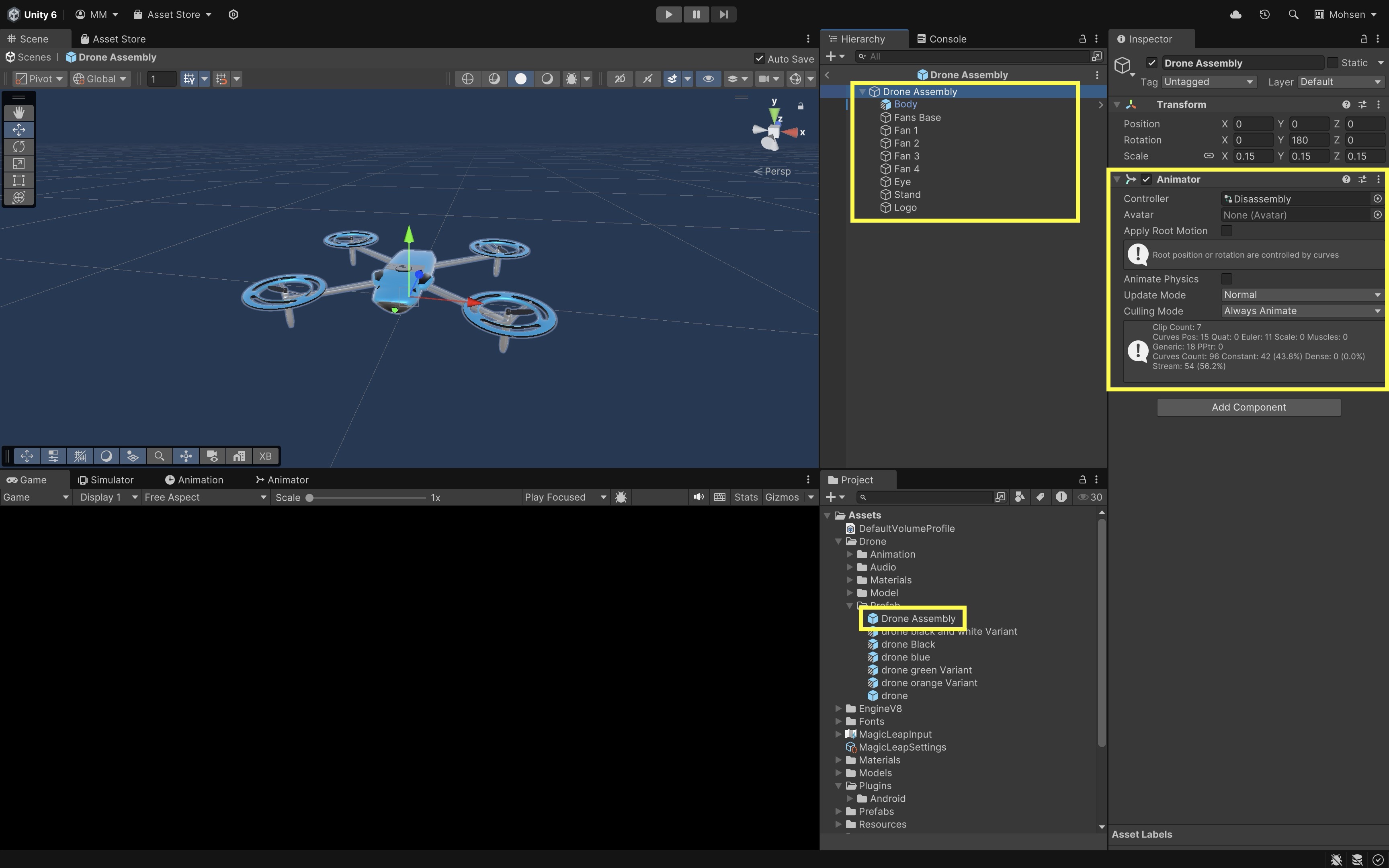
Keep calibration corrections on the content root rather than modifying the anchor or tracked-reference transform. Prepared engineering models such as Engine V8 or Drone Assembly can use the same pattern.
Tracking Layers
| Tracking layer | What it estimates | Example in this course |
|---|---|---|
| Device pose | Headset, controller, and hand position/orientation | The camera and interaction rays follow the user |
| Environment trackables | Planes, meshes, bounding boxes, tracked images, and scene features | A table plane or bounding box used for placement review |
| Application anchors | Stable frames created by the app | An anchor beneath a placed engineering model |
| Application content | Model and UI transforms relative to anchors | Instruction panel or sample object |
Inside-out tracking depends on environmental observations. Conditions that can reduce tracking quality include low light, reflective or repetitive surfaces, moving furniture, covered cameras, rapid motion, returning from a substantially different position, and insufficient Space Setup or missing spatial-data permission.
Trackable States
AR Session controls the lifecycle of the AR experience. The scene should contain only one active session. ARSession.state represents the overall AR lifecycle. Individual trackables such as ARAnchor, ARTrackedImage, ARPlane, and ARBoundingBox each report their own trackingState:
ARSession.state: Whether the overall AR experience is ready, tracking, unsupported, or in another lifecycle state.ARAnchor.trackingState: Whether a specific application anchor is currently tracked reliably enough to use.ARTrackedImage.trackingState: Whether a recognized reference image is currently tracked.ARPlane.trackingState: Whether a detected plane is currently tracked.ARBoundingBox.trackingState: Whether a scene bounding box is currently tracked.
Neither session state nor trackable state certifies metric accuracy. Precision interaction requires an acceptable session state and acceptable relevant trackable state.
State Availability Fallbacks
Use the following application behavior:
- session not tracking → pause precision interaction;
- relevant trackable missing → pause precision interaction;
TrackingState.None→ unavailable warning;TrackingState.Limited→ limited-tracking warning;TrackingState.Tracking→ normal interaction;- recovery controls remain available in all states.
using UnityEngine;
using UnityEngine.XR.ARFoundation;

public class SessionStateObserver : MonoBehaviour
{
    private void OnEnable() => ARSession.stateChanged += OnSessionStateChanged;
    private void OnDisable() => ARSession.stateChanged -= OnSessionStateChanged;

    private void OnSessionStateChanged(ARSessionStateChangedEventArgs args)
    {
        switch (args.state)
        {
            case ARSessionState.Unsupported:
                Debug.LogWarning("AR is unsupported on this device.");
                break;
            case ARSessionState.SessionTracking:
                break; // enable precision tasks when combined with trackable state
            default:
                break;
        }
    }
}
Observe Tracking and Registration
Before studying image tracking, anchors, and bounding boxes in detail, observe spatial behavior on the standalone device.
- Open the E6 working scene and save a copy as
E7_TrackingAndAnchorsif not already present. - Build and run on the target headset.
- Use the hand menu assets tab to select a sample object or prepared engineering prefab.
- Spawn the object through the
Contact Spawn Trigger. - Grab and reposition it using standard XRI grab components (
XR Grab InteractableandXR General Grab Transformer). - Walk around the object and inspect registration, jitter, drift, and scale.
- Briefly leave the tracked area, then return and observe recovery behavior.
- Repeat with plane debug visualization disabled so registration is judged from the placed content rather than the rendered plane mesh.
Do not require the object to follow a detected plane unless a verified surface-constraining component has been added.
Image and Marker Tracking
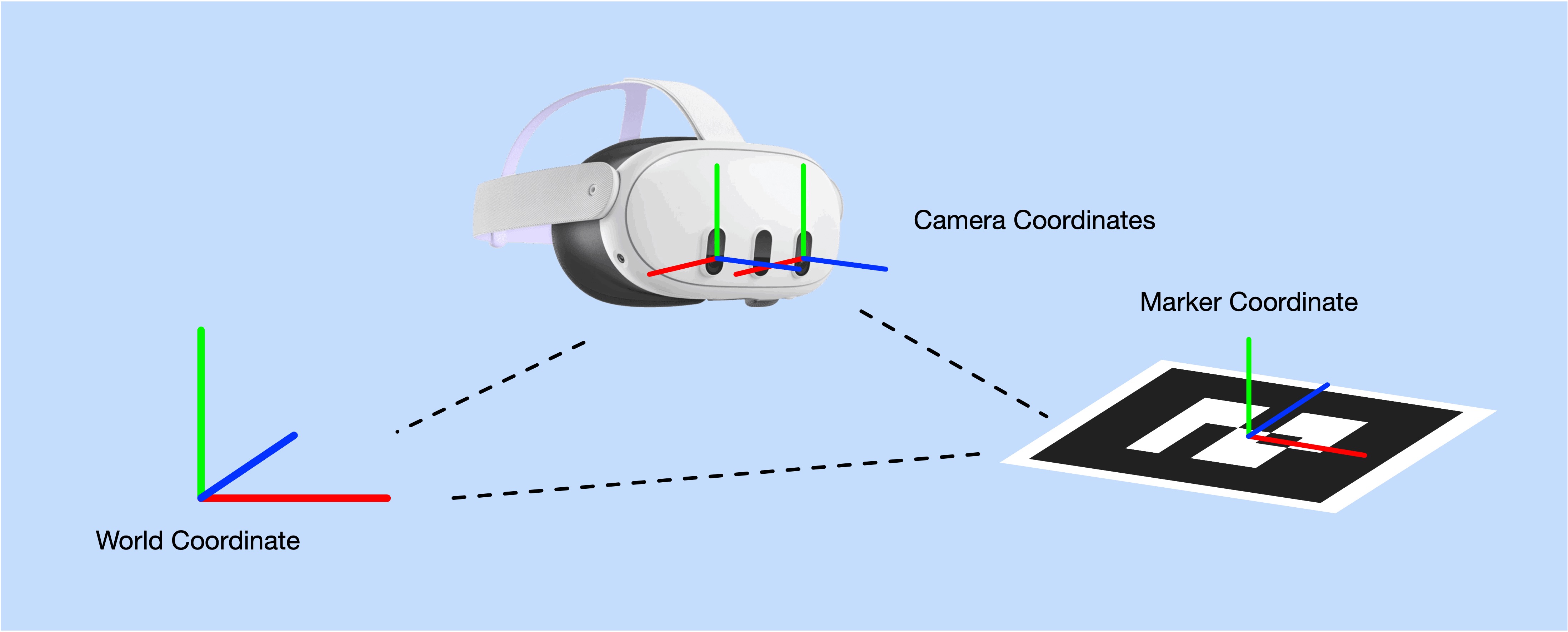
Image- and marker-based tracking ties a virtual pose to a known physical visual reference. This section extends the broader tracking topic by examining how known visual references can supplement environmental registration when provider support is available. It does not repeat the full mobile implementation from E4 Mobile AR: Tracking.
Engineering Use Cases
- Equipment Markers: Attach instruction panels, status overlays, or calibration references to a fixed marker on a machine or fixture.
- Workstation Identification: Recognize a labeled workstation and show the correct task content beside it.
- Asset Labels: Present maintenance, operating, or identification information next to a labeled tool, part, or machine.
- Human-Robot Collaboration: Display shared task cues, safety boundaries, or handoff zones relative to a station or floor marker.
- Mobile Robot Navigation: Use a printed landmark to help a robot or AGV recover position within a mapped workspace.
- Assembly Checkpoints: Confirm part, tool, or station identity at a marker before showing the next procedural step.
- Supplemental Alignment: Provide a visual reference when scene registration or anchor relocalization is insufficient.
Tracking Approaches
Not every visual marker workflow uses the same AR Foundation component.
| Approach | Typical role | Uses AR Tracked Image Manager? |
|---|---|---|
| AR Foundation reference-image tracking | Recognize images from a Reference Image Library and return a 6DoF pose | Yes |
| QR-code detection | Decode encoded data; pose quality depends on platform or custom implementation | No |
| ArUco or fiducial tracking | High-contrast marker pose estimation through computer vision | No |
| Barcode identification | Identify an asset label; may not supply a reliable 6DoF pose | No |
| Custom computer-vision tracking | Application-specific marker or object tracking | No |
AR Tracked Image Manager applies only to reference images exposed through the active provider’s image-tracking subsystem. QR, ArUco, ChArUco, barcode, and custom vision workflows may require platform-specific APIs or a separately validated computer-vision path.
AR Tracked Image Manager
AR Tracked Image Manager is the AR Foundation manager for detecting and tracking 2D reference images. It uses a Reference Image Library, creates ARTrackedImage trackables, and updates them as the provider recognizes images in the camera feed. Each ARTrackedImage can provide a pose, image identity, physical-size information where supplied, and trackingState. Content can be parented beneath the tracked-image transform while image tracking is valid, but marker-relative tracking is not automatically the same as an application-created anchor or persistent anchor. The manager requires the active provider to implement XRImageTrackingSubsystem. Adding the component in Unity does not establish runtime support. The Unity OpenXR: Meta provider used for the Quest 3 course path does not currently provide AR Foundation image tracking.
AR Tracked Image Managercan be used on platforms—and potentially other headset or provider combinations—whose AR Foundation provider implementsXRImageTrackingSubsystem. The Unity OpenXR: Meta provider used for the Quest 3 course path does not currently implement that subsystem. E4 Mobile AR: Tracking remains the course’s completeAR Tracked Image Managertutorial on supported mobile platforms.
Computer Vision Marker Tracking
Quest 3 marker tracking is still possible even though AR Tracked Image Manager is unavailable. ArUco, ChArUco, QR, and object-recognition workflows can process passthrough camera frames from this pipeline. Pose estimation requires camera calibration information or camera intrinsics, known marker geometry, coordinate conversion, and careful latency and registration validation. An external robot camera can alternatively detect the marker and transmit its pose to Unity.
Pipeline
On the Quest course path, it is implemented as an application-specific computer-vision pipeline rather than through AR Foundation’s image-tracking manager:
Quest 3 passthrough RGB camera
        ↓
Meta Passthrough Camera API
        ↓
Camera image, intrinsics, extrinsics, and camera pose
        ↓
Computer-vision detector such as OpenCV ArUco
        ↓
Marker corners and identifier
        ↓
Marker pose estimation using known marker dimensions
        ↓
Conversion from camera coordinates to Unity/XR coordinates
        ↓
Robot, digital twin, engineering model, or spatial UI alignment
Marker-relative pose estimation is not automatically an AR Foundation anchor. An application may use the resulting pose for alignment or create an application anchor when the physical reference is fixed and the workflow supports it. Marker-relative tracking and application anchors are related but distinct spatial-registration mechanisms; do not let both independently control the same content at the same time.
Resources
The following repositories illustrate Quest camera access and custom computer-vision marker tracking. They are optional advanced references, not required E7 tutorials. Review their current README files, Unity or package requirements, dependencies, permissions, and licenses before incorporating code into another project.
-
Meta Unity Passthrough Camera API Samples — oculus-samples/Unity-PassthroughCameraApiSamples
Official Meta sample for accessing Quest passthrough camera frames and working with camera pose, intrinsics, extrinsics, and camera-to-world transformations.
-
Quest ArUco Marker Tracking — TakashiYoshinaga/QuestArUcoMarkerTracking
Community example demonstrating single- and multi-marker ArUco tracking and ChArUco tracking on Quest 3/3S using the Passthrough Camera API and OpenCV. Its current README lists additional OpenCV dependencies; review those requirements rather than assuming the project is dependency-free.
-
QuestCameraKit — xrdevrob/QuestCameraKit
Optional broader camera and computer-vision reference containing examples related to camera access, pose-aware reprojection, tracking, and QR or vision workflows.
Community repositories are not official Meta or Unity packages. Distinguish the official Meta sample from community implementations when evaluating them.
Anchors
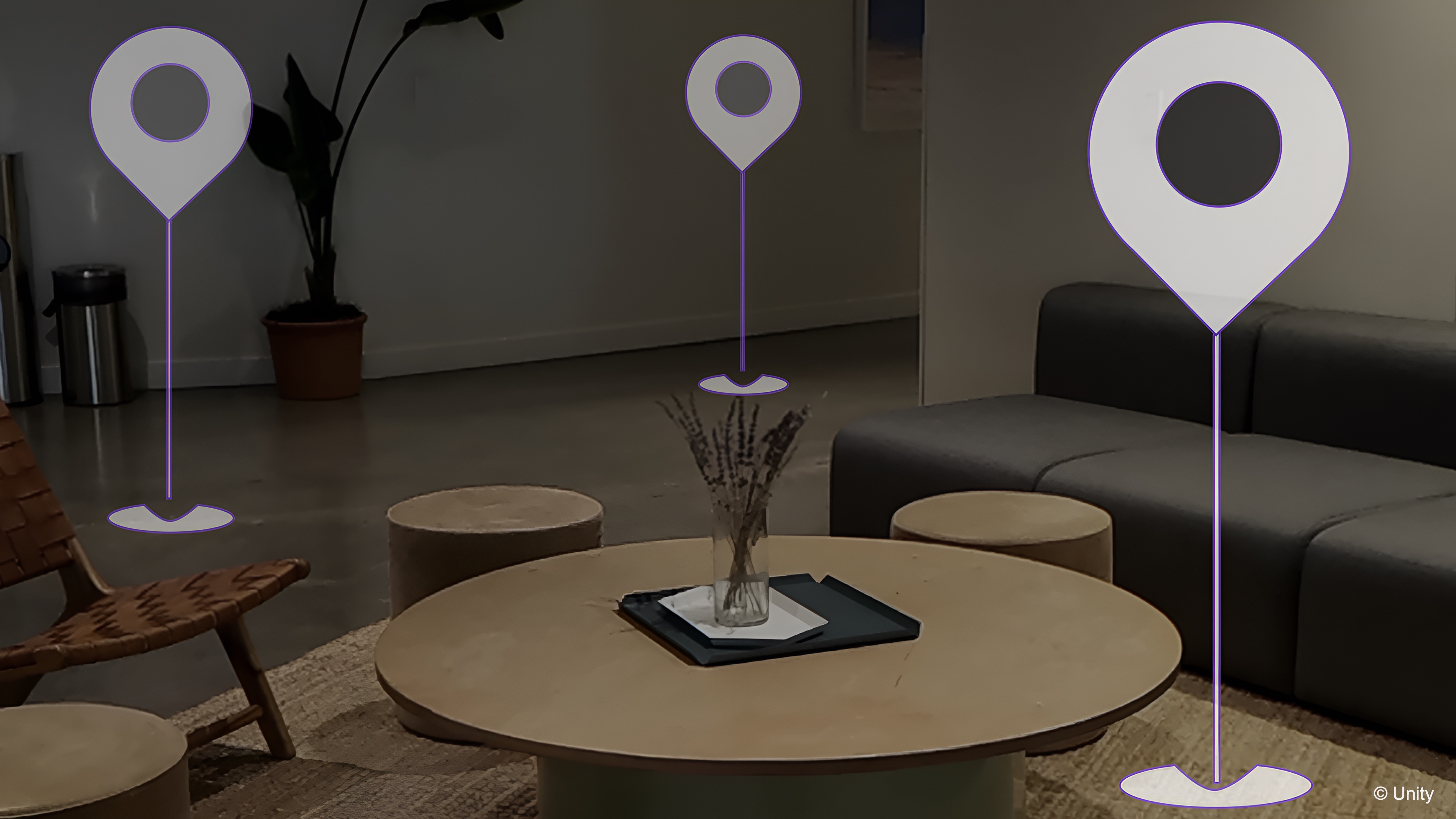
An anchor is an application spatial reference that associates a Unity pose with a location in the physical environment. A plane, raycast hit, marker pose, scene region, and application anchor serve different roles. A candidate pose identifies where content might go; the application anchor becomes the tracked reference after confirmation. The anchor does not correct a bad content pivot, scale, orientation, or initial placement.
Why Use Anchors?
Instead of leaving a model as an arbitrary world-space GameObject, the application creates an anchor and makes the model a child of that anchor. Unity’s AR Anchor Manager creates and tracks anchor GameObjects through APIs such as TryAddAnchorAsync(). An anchor improves the stability of a virtual reference frame. It does not prove that the original placement was correct. Engineering use cases for spatial anchors include:
- Workstation Visualization: Stabilize an engineering model on a confirmed table or bench for scale and access review.
- Guided Assembly: Keep instructions and highlighted components near a physical work area as the user moves.
- Maintenance Support: Attach labels, warnings, or procedural panels to equipment at a confirmed location.
- Design Review: Restore a virtual prototype to the same room or workstation across sessions where persistence is supported.
- Task Panels: Position spatial UI or status information at a user-confirmed point in the workspace.
- Clearance Visualization: Align a virtual keep-out or hazard region with a confirmed floor or machine zone. Treat the result as a visualization aid, not a certified safety barrier.
Placement and Anchoring
Placement and anchoring are separate steps: detect or identify a region, preview a pose, require explicit confirmation, create the anchor, parent the content root beneath it, validate from several viewpoints, and persist only when cross-session continuity is required and supported.
- Detect or inspect: Identify a plane, bounding box, tracked image, or other supported trackable.
- Preview: Show the candidate position and orientation.
- Confirm: Require an explicit user action.
- Anchor: Create a tracked reference at the confirmed pose.
- Parent: Place the content root under the anchor.
- Validate: Check alignment from several viewpoints.
- Persist: Save the anchor only when later restoration is required and supported.
A raycast result is not an anchor. It supplies a pose at one moment. The anchor becomes the ongoing tracked reference after the user confirms placement.
Types of Spatial References
| Spatial reference | Created by | Typical lifetime | Primary purpose |
|---|---|---|---|
| Raycast or plane pose | Placement system | Momentary result | Identify a candidate placement |
| Marker-relative pose | Marker or tracked-image detector | While marker is recognized | Align content to a visual target |
| Local/session anchor | Application | Current AR session | Stabilize confirmed content |
| Persistent anchor | Application and provider | Multiple supported sessions | Restore content later |
| Scene anchor | Operating system during Space Setup | System managed | Describe room structures and objects |
| Shared anchor | Provider or networking layer | Advanced multiuser workflows | Optional future extension |
E7 implements local and persistent application anchors. Scene anchors provide contextual room data but are not application-owned anchors.
Configure AR Anchor Manager
AR Anchor Manager is the AR Foundation trackable manager for application anchors. It interfaces with the provider’s anchor subsystem, creates and tracks ARAnchor GameObjects, and exposes save, load, and erase capabilities where the provider supports them. Each ARAnchor represents one runtime application reference. Local creation, removal, save, load, and erase capabilities depend on provider support. Persistence is optional and separate from local anchor creation.
- Verify provider support:
- Inspect the active provider.
- Inspect descriptor or capability information exposed by the installed version.
- Distinguish local anchor support from persistent-anchor support.
- Locate the existing manager:
- Expand
MR Interaction Setup. - Select the
XR Origin. - Locate the existing
AR Anchor Manager. - Add another only if the current template genuinely lacks it.
- Confirm only one active manager exists.
- Expand
- Inspect the manager:
- Review
Anchor Prefabwhere exposed. - Inspect subsystem and descriptor availability.
- Inspect its trackables collection at runtime.
- Do not invent fields absent from the installed version.
- Review
- Spawn and position several objects:
- Build and run on the standalone headset.
- Open the
Assetstab ofHand Menu Setup MR Template Variant. - Select two or three existing sample objects from the installed
Object Prefabscollection. Verify exact prefab names in the Inspector rather than assuming a fixed list. - Spawn each object through the palm-mounted
Contact Spawn Trigger. - Use the existing XRI grab interaction to position each object at a visibly distinct location.
- Walk around the objects and verify that they remain registered with the physical environment.
Spawning initiates the template anchor workflow. The object can appear before asynchronous anchor creation completes, so visible placement alone does not prove that an anchor was successfully created.
- Inspect the supporting components:
Object Spawner: Inspect- the
Object Prefabscollection; - the selected prefab index or selector connection;
- the spawn trigger or spawn event;
- the event sent when a new object is created.
- the
Object Spawner creates the selected content but does not independently implement the complete persistence lifecycle.
Spawned Objects Manager: Locate and inspect the fields exposed by the installed version, including where present:Spawn As Persistent Anchor;Load Saved Anchors On Start;- Object Selector Dropdown;
- Destroy Objects Button;
- Anchor Text;
- Anchor Manager;
- the
Object Prefabscollection on the connected Object Spawner, which determines the prefab index stored for later reconstruction.
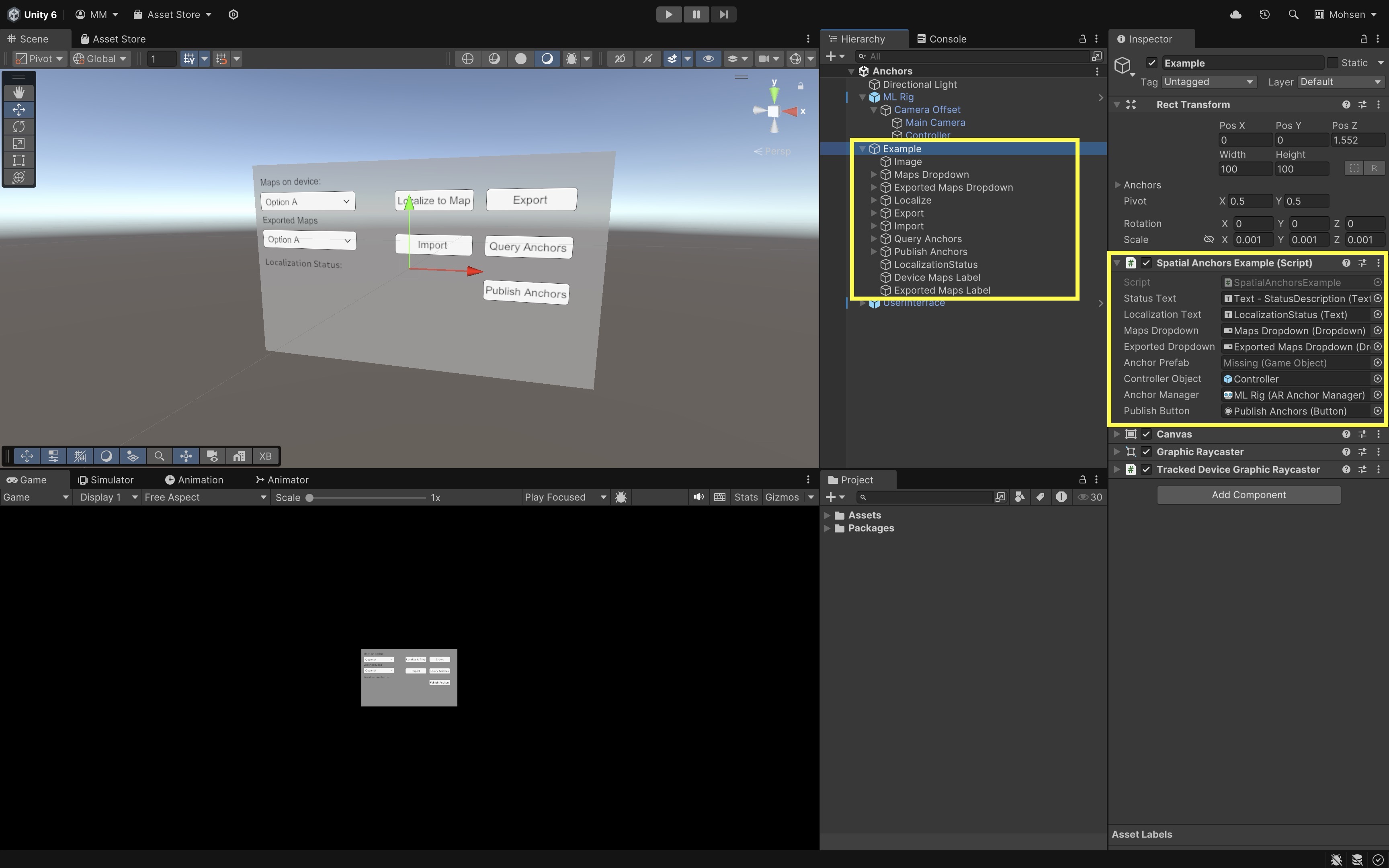
In the installed sample, Spawned Objects Manager:
- receives the newly spawned object;
- records the selected prefab index;
- requests an anchor through
AR Anchor Manager; - waits for
TryAddAnchorAsync()to complete; - parents the object beneath the successful
ARAnchorwhen the request succeeds; - retains the prefab identity needed to reconstruct saved content later.
- Verify local anchor creation:
- Spawn one object and allow the asynchronous operation to complete.
- Verify, using Unity Link, Editor Play Mode where applicable, device logs, or a small temporary debug aid, that the resulting hierarchy follows this pattern:
XR Origin └── ARAnchor └── Spawned Content Root └── Visual and Interaction Components- Inspect:
- the
ARAnchorcomponent; - its Transform;
- its
trackingState; - the child content Transform;
- whether scale, pivot, and orientation corrections remain on the content root.
- the
A spawned object is not confirmed as anchored until
TryAddAnchorAsync()succeeds. TheARAnchorshould remain a clean spatial reference. Do not apply model calibration by scaling or rotating the anchor. A failed anchor request must not be treated as a successful anchored placement. - Test anchored-object manipulation:
- Grab and reposition one of the spawned objects after local anchor creation.
- In the installed sample, ordinary XRI grab movement changes the content transform relative to the existing anchor. The sample does not automatically update or recreate the anchor when the object is moved after spawn. The object is not automatically constrained to a detected plane.
- Interaction behavior and anchor behavior are separate systems. An
XR Grab Interactablecontrols manipulation;AR Anchor Managercontrols the spatial reference. After repositioning, inspect the resulting hierarchy and anchor state again.
- Inspect persistence settings:
Spawn As Persistent Anchor: In the installed sample,- local anchor creation still occurs through the normal spawn workflow;
- enabling this setting makes successfully anchored objects eligible for the persistence workflow;
- disabling it prevents the object from being included when persistent anchors are saved;
- persistence eligibility does not itself mean the anchor has already been saved.
Load Saved Anchors On Start: This optionally requests restoration when the application starts. Test it only after anchors have been saved successfully.
Local anchor creation ≠ Persistent save - Save the anchors:
- Ensure at least two successfully anchored objects are eligible for persistence.
- Position them at clearly distinguishable locations.
- Select Save Anchors.
- Observe Anchor Text, logs, or other existing feedback.
- Confirm that saving completes before proceeding.
In the installed sample,
SaveAnchors()erases the previously saved set before saving the currently eligible spawned anchors, so Save replaces rather than appends. The template stores each saved anchor together with the corresponding prefab index so the content can be reconstructed later. - Load and evaluate relocalization:
- Select Load Anchors.
- Verify that:
- the saved anchors are requested from the provider;
- the appropriate prefabs are recreated;
- the restored content appears near its previous physical locations;
- each recreated object corresponds to the stored prefab index;
- relocalization may require time and observation of the same physical area.
- Evaluate translation offset, orientation offset, scale and pivot correctness, stability while walking around, whether all saved anchors restore, and whether any anchor remains limited or unavailable.
- If anchor or session tracking degrades, use Anchor Text, Coaching UI, or Spatial Panel Manipulator for status and recovery guidance rather than building new feedback UI.
Persistence is not exact or guaranteed. Successful restoration depends on provider support, environmental observations, room consistency, and tracking quality.
Anchor Lifecycle
An anchor lifecycle separates what is visible in the scene, what the provider is tracking right now, and what has been stored for later sessions. In the MR Template workflow, that progression is select a prefab, spawn the object, request a local anchor, parent content after success, validate registration, mark eligible objects for persistence, save, delete active state, load and relocalize, and erase obsolete records when no longer needed. The table below summarizes how Save, Delete All, Load, and Erase affect each layer.
| User action | Visible content | Runtime anchor | Persistent record |
|---|---|---|---|
| Spawn | Created | Created after successful asynchronous request | Not yet saved |
| Save Anchors | Remains active | Remains active | Created or replaced for eligible objects |
| Delete All | Removed | Removed | Preserved |
| Load Anchors | Recreated | Loaded or relocalized | Preserved |
| Erase | May remain active | May remain active | Removed |
| Delete All after Erase | Removed | Removed | Already removed |
| Load after Erase | Not restored | Not restored | None |
AR Bounding Boxes
Bounding boxes are approximate 3D volumes associated with room objects or regions recognized by the headset’s scene-understanding system. For example, the provider may report a table-like, couch-like, screen-like, storage, wall, floor, or other supported scene entity together with an approximate position, orientation, and size. AR Bounding Box Manager exposes these provider-reported volumes to Unity as runtime ARBoundingBox trackables. Applications can visualize them, inspect their dimensions and classifications, or use them as coarse contextual hints. The manager does not recognize arbitrary custom objects and cannot be trained by the application to identify a specific machine, robot, tool, fixture, or component.
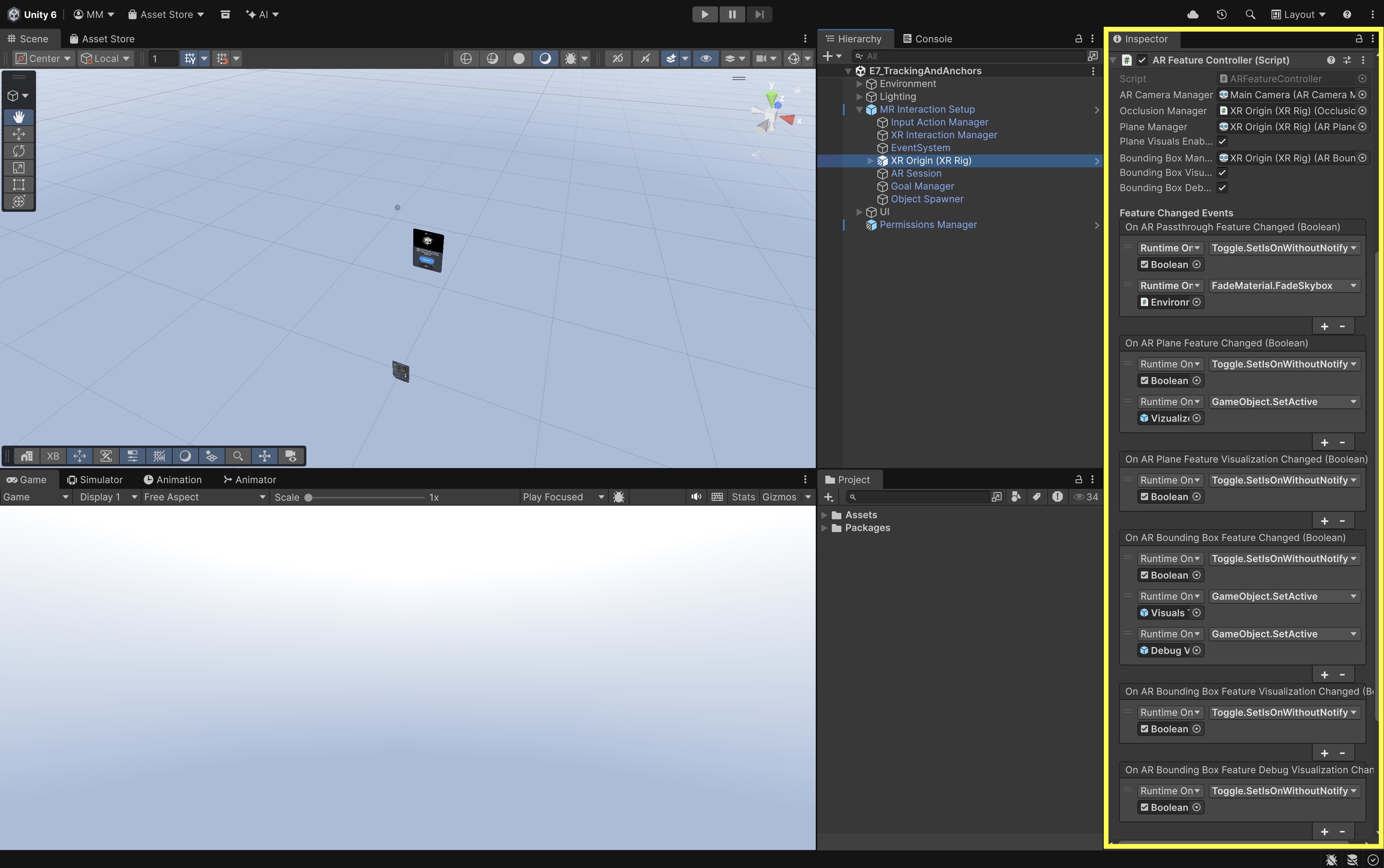
AR bounding boxes are used primarily to inspect what the headset believes exists in the room and to evaluate whether a reported region could serve as a candidate location for user-confirmed content placement.
Affordances
The provider performs scene recognition. AR Bounding Box Manager only exposes the resulting trackables to Unity.
AR Bounding Box Manager can |
AR Bounding Box Manager cannot |
|---|---|
| Visualize provider-recognized room volumes | Learn a new object category |
| Report approximate position, orientation, and size | Recognize a specific machine model |
| Expose broad classifications where supported | Verify that an area is empty, safe, level, or accessible |
| Support coarse scene-aware application logic | Replace computer vision, markers, calibration, or metrology |
| Suggest candidate regions for user inspection | Automatically determine a correct engineering placement |
Definitions
Three related ideas must remain separate:
- Geometry: approximate position, orientation, and extent of a reported region.
- Semantics: the broad classification assigned by the provider, where supported.
- Application meaning: the application’s interpretation of whether that region might be useful.
A table classification means only that the provider considers the region table-like. It does not prove that the surface is empty, horizontal, stable, accessible, safe, or large enough for the intended task.
Engineering Use Cases
- Scene Visualization: Display approximate boxes around room entities recognized by the headset.
- Room-Layout Inspection: Compare reported boxes with visible tables, furniture, walls, screens, or storage regions.
- Candidate-Region Selection: Identify a table-like or floor-like region that the user can inspect before placing content.
- Contextual UI: Show labels, dimensions, or simple application information associated with a reported scene region.
Configure AR Bounding Box Manager
Work in E7_TrackingAndAnchors and use the manager already present in the MR Template scene unless the installed template genuinely lacks one.
- Check room setup and permission:
- Complete required physical-space or Space Setup on the standalone headset.
- Recognize that reported room entities normally originate from the headset’s physical-space data and provider scene-understanding system.
- Use the existing
PermissionsManager. - Let
AR Feature Controllercoordinate activation where configured. - Do not manually force scene-data managers enabled before required permission succeeds.
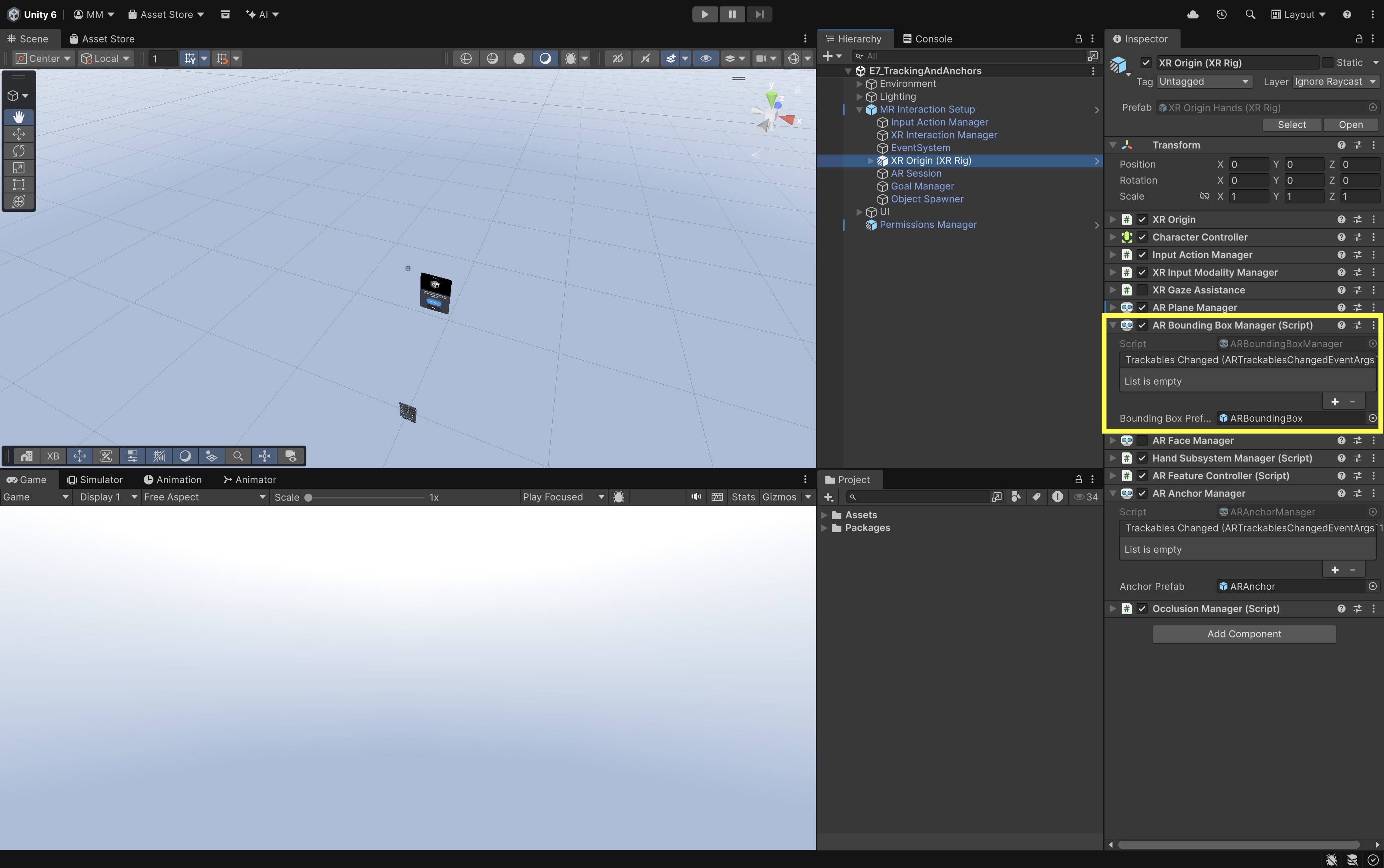
- Locate the existing manager:
- Expand
MR Interaction Setup. - Select the XR Origin.
- Locate the existing
AR Bounding Box Manager. - Add another only if the installed template genuinely lacks one.
- Expand
- Inspect the Bounding Box Prefab:
- Review the assigned
Bounding Box Prefabwhere exposed. - Inspect the visualizer component on that prefab.
- Inspect its renderer, material, labels, or other existing visualization elements.
- Determine whether the visualizer changes appearance based on classification or tracking state.
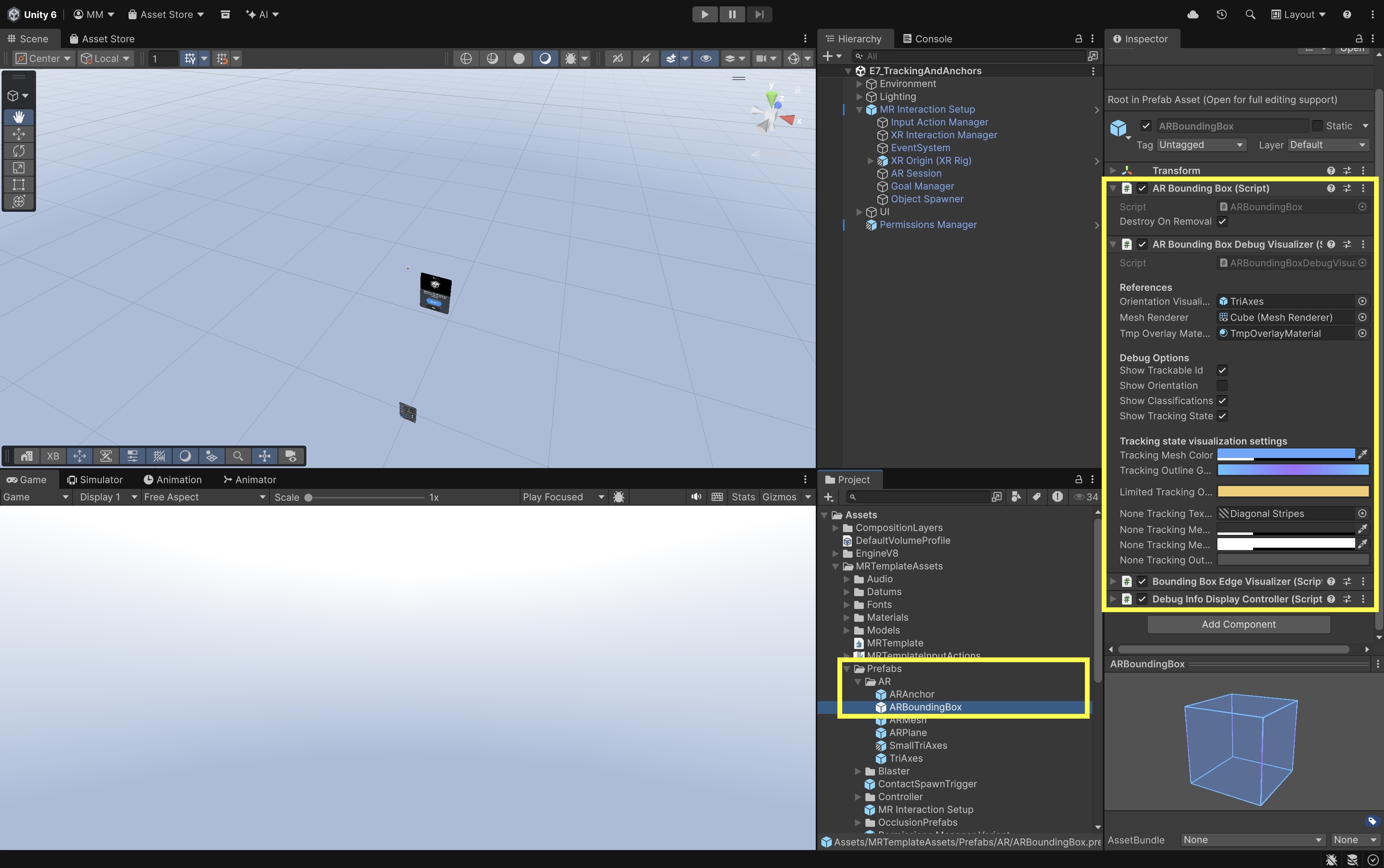
Customizing this prefab changes how reported boxes look or behave. It does not change which physical objects the provider recognizes.
- Review the assigned
- View runtime bounding boxes:
- Build and run
E7_TrackingAndAnchorson the standalone headset. - Complete the required physical-space setup and grant scene-data permission.
- Open
Hand Menu Setup MR Template Variant. - Open the Bounding Boxes tab.
- Enable Enable Bounding Boxes and Visualize Bounding Boxes. Verify the exact labels against the installed prefab.
- Look around the room and identify the visible box visualizations.
- Compare each box with the physical region or object it appears to approximate.
- Observe whether some room entities are missing, combined, oversized, undersized, rotated incorrectly, or classified unexpectedly.
Each visible box corresponds to a runtime
ARBoundingBoxtrackable created byAR Bounding Box Managerfrom provider-supplied scene data. - Build and run
- Inspect one runtime
ARBoundingBox:- When using Unity Link, a supported connected Play Mode workflow, or another live debugging connection, expand the XR Origin’s runtime trackables hierarchy.
- Locate one GameObject containing an
ARBoundingBoxcomponent. - Select it and inspect its Transform, approximate
size,trackingState, classifications where supported, and the instantiated visualizer prefab. - Compare the reported values with the visible physical region.
The exact runtime parent name can vary by installed package and template version. In a normal unconnected standalone build, students cannot inspect the Unity Hierarchy directly. Use the visible visualizer, Unity Link, logs, or a small temporary runtime status display.
- Observe limitations:
- Record one reasonably matched box.
- Record one inaccurate, missing, or ambiguously classified region.
- Note whether classification is available on the active provider.
- Note whether the reported dimensions are only approximate.
- Consider whether room changes require updated Space Setup or refreshed scene data.
A correctly configured manager does not guarantee that every physical object will receive a bounding box or classification.
Candidate Regions
A bounding box can suggest a coarse candidate region, but consequential placement still requires user inspection, confirmation, and the existing application-anchor workflow. An application might find a table-like bounding box, compare its approximate dimensions with a model footprint, and show a preview above the reported top surface. The user must still inspect the physical table and confirm the placement before an application anchor is created. If a table-like preview pose is useful as an example, a top-center pose can be derived rather than using the box center directly:
Vector3 topCenter =
    box.transform.position +
    box.transform.up * (box.size.y * 0.5f);

Pose placementPose =
    new Pose(topCenter, box.transform.rotation);
This calculates only a candidate preview pose. It does not verify that the surface is clear or suitable, identify a custom object, or create an anchor. Use the existing anchor workflow only after user confirmation. If Spawned Objects Manager has already created an anchor for a spawned object, do not call
TryAddAnchorAsync()again for that same object.
Customizing Behavior
- Visual customization: You may customize the assigned
Bounding Box Prefabto change materials or line appearance, show dimensions, show a provider classification, change appearance based ontrackingState, add selection or highlighting, or attach application-specific UI or behavior. - Application interpretation: You may also write application logic that filters boxes by available classification, checks approximate dimensions, identifies possible table-like or floor-like candidate regions, or associates their own application label with a provider-reported box. An application label such as candidate workstation is the application’s interpretation, not proof that the provider recognized a specific workstation.
- Custom object recognition: You cannot configure
AR Bounding Box Managerto detect a new physical object category. Recognizing a specific custom object requires a separate method, such as ArUco, ChArUco, or QR markers; a custom passthrough-camera computer-vision model; an external calibrated camera or robot perception system; manual user registration; or a known fixture or calibration target. A resulting custom-object pose may then be used for alignment or application anchoring, but it is separate from the provider-generatedARBoundingBoxworkflow.
Validate the Experience
The final evaluation must occur on the standalone target device in the physical room for which scene data was configured. Use E7_TrackingAndAnchors in the build profile.
Validation Procedure
- Confirm passthrough and input remain functional.
- Confirm only one active
AR Sessionexists. - Observe overall session tracking and individual trackable states.
- Walk around placed content and evaluate registration from multiple viewpoints.
- Explain the distinction between AR Foundation reference-image tracking and Quest 3 custom computer-vision marker tracking; no marker-tracking implementation is required in this session.
- Spawn one object and verify local anchor creation completes before persistence is attempted.
- Verify Save, Delete All, Load, and Erase behave distinctly.
- Test relocalization after load.
- Confirm tracking feedback and recovery behavior when connected to Anchor Text, Spatial Panel Manipulator, or Coaching UI.
- Complete physical-space setup and test permission in granted and denied cases.
- Open the Bounding Boxes tab, enable Enable Bounding Boxes and Visualize Bounding Boxes where available, view provider-reported runtime boxes, and compare at least one reported box with its physical region.
- Inspect approximate dimensions and classification where supported, identify at least one limitation or mismatch, and explain that
AR Bounding Box Managercannot detect arbitrary custom objects. - Explain how the Bounding Box Prefab can be visually customized and how a reported box can supply a candidate region before user confirmation and anchoring.
- Verify manual fallback remains available.
- Test stale room data behavior.
- Evaluate scale, pivot, translation, orientation, drift, and relocalization error.
- Confirm standalone performance, privacy, and physical safety remain acceptable.
Troubleshooting
- Session not tracking:
- Improve lighting and visual texture; encourage the user to look around the work area.
- Pause precision interactions until
ARSession.statereturns to an acceptable tracking state.
- AR Tracked Image Manager does not work on Quest:
- The Unity OpenXR: Meta provider used by this course does not currently implement the
XRImageTrackingSubsystemrequired byAR Tracked Image Manager. - Do not treat adding the manager component as evidence of runtime support.
- Use E4 Mobile AR: Tracking for the supported mobile AR Foundation workflow.
- Quest 3 marker tracking requires a separately designed and validated Passthrough Camera API and computer-vision pipeline.
- The Unity OpenXR: Meta provider used by this course does not currently implement the
- Anchor creation failure:
- Verify
AR Anchor Manageris enabled and referenced correctly. - Confirm provider anchor support and a valid spawn pose.
- Check device logs or connected hierarchy inspection for
TryAddAnchorAsync()failure. - Do not save an object that lacks a successfully attached anchor.
- Verify
- Persistence unsupported or no eligible objects:
- Check
ARAnchorManager.descriptorandSpawn As Persistent Anchor. - Keep local or session anchoring available as a fallback.
- Check
- Active deletion confused with erasure:
- Assets > Delete All removes active runtime objects; it does not erase persistent data.
- Persistent Anchors > Erase removes saved records; active objects may remain visible.
- Anchor fails to relocalize:
- Return to the same physical area and allow time for relocalization.
- Confirm the saved set was not erased and the prefab index still matches Object Prefabs order.
- Tracking-feedback methods are undefined or not connected:
- Connect
ShowWarning,HideWarning, andSetPrecisionInteractionsEnabledto Anchor Text, Spatial Panel Manipulator, Coaching UI, or the relevant interactable root.
- Connect
- Runtime anchor or bounding box cannot be inspected in an unconnected standalone build:
- Use Unity Link, Editor Play Mode, device logs, or a temporary debug script to verify hierarchy and trackable state.
- Standalone testing is still required for actual anchor behavior, persistence, and relocalization.
- Scene feature manager manually enabled while
AR Feature Controllerexpects to manage it:- Disable manual overrides on plane, mesh, bounding-box, or occlusion managers when the template controller owns activation.
- Let
PermissionsManagerandAR Feature Controllerenable only supported features after permission succeeds.
- Hand-menu button exists but feature is unsupported:
- A visible control does not prove subsystem support.
- Check manager descriptors, provider capability, and permission state before assuming the feature is active.
- No bounding boxes appear:
- Complete physical-space setup, verify permission, and confirm provider support.
- Incorrect classification or orientation:
- Inspect
box.transform.upand compare the box with the physical object. - Do not place content at the raw box center without visual confirmation.
- Inspect
- My custom object is not detected:
AR Bounding Box Managerreports only the scene entities recognized by the active provider.- Adding a prefab, label, CAD model, or script does not train the provider to recognize a new object.
- Customize the Bounding Box Prefab only for visualization and application behavior.
- Use marker tracking, custom computer vision, external sensing, or manual registration for specific machines, tools, fixtures, or components.
- Duplicate manager or anchor path:
- Keep one XR Origin, one AR Session, one
AR Anchor Manager, oneAR Bounding Box Manager, one Object Spawner, and one Spawned Objects Manager. - Do not run Spawned Objects Manager and a second custom anchor-creation path on the same object.
- Keep one XR Origin, one AR Session, one
- Manual fallback unavailable:
- Confirm E6 plane visualization and the anchor workflow in this session still function.
- Reuse existing template placement rather than creating a new interaction rig.
- Poor standalone performance:
- Disable bounding-box, plane, and mesh debug rendering after inspection.
- Profile on the target device rather than relying only on Editor performance.
Key Takeaways
- Spatial registration depends on tracking quality, overall
AR Sessionstate, and the separatetrackingStatereported by individual anchors, planes, images, and bounding boxes; each layer must be evaluated before trusting precision placement. AR Tracked Image Managerrequires provider support forXRImageTrackingSubsystem, which the Unity OpenXR: Meta Quest path does not currently provide; Quest marker tracking instead relies on a separately validated Passthrough Camera API and computer-vision pipeline, related to but distinct from application anchors.AR Anchor Managercreates application anchors through the existing spawn workflow; local anchoring, persistence, and the Save, Load, Delete All, and Erase actions affect different layers of visible content, runtime anchors, and stored records.AR Bounding Box Managerexposes approximate provider-recognized room volumes and classifications for visualization and coarse candidate-region inspection; it cannot detect arbitrary custom objects, and consequential placement still requires user confirmation, an application anchor, and manual fallback.- Passthrough AR with tracking, anchors, and scene understanding supports visualization and task context, not metrology, certified safety guidance, or automatic engineering placement decisions; final behavior requires on-device validation in the physical workspace.