E5. Mobile AR: Anchors
Learning Outcomes
- Explain the role of anchors in mobile AR for maintaining spatial stability. Before class, review when and why to use anchors, and identify one XFactory scenario where anchoring would help keep virtual elements aligned with the real world during a session.
- Distinguish local/session anchors, plane-attached anchors, image-tracking-derived anchors, and persistent anchors when supported. In preparation, study which anchor types your target provider supports and when each is appropriate.
- Describe how to implement tap-based anchor placement in mobile AR. Ahead of the session, read how to use
ARPlaneManager,ARRaycastManager, andARAnchorManagerso users can pin virtual objects to validated plane raycast hits.- Explain how anchoring can extend tracked-image workflows on supported mobile devices. Study when converting a tracked-image pose to a world anchor helps after brief tracking loss—and when content should stay parented to
ARTrackedImageinstead.- Identify which anchor features are supported by the target provider, including whether plane-attached anchors and persistent anchors are available. Be ready to explain provider differences for ARKit, ARCore, XR Simulation, and Quest passthrough AR.
- Evaluate anchored content for drift, scale, alignment, tracking state, real-world safety, and recovery behavior. Come prepared to discuss on-device validation, not Editor-only assumptions.
Anchoring GameObjects
In mobile AR, anchors represent fixed tracked poses in the physical environment. They help stabilize content placed by raycast, plane detection, image tracking, or user interaction. Anchors are not object tracking by themselves—they do not continuously follow a moving physical object unless another tracking system updates the pose. Anchors are best for content that should remain fixed relative to the environment. If a physical object moves, an anchor created at its old pose will not automatically follow it unless another tracking system updates the pose. Used well, anchors support:
- Stable Placement: Pin virtual content to meaningful poses so it stays more stable than unparented content during normal tracking updates.
- Session Continuity: Help content recover more gracefully when tracking fluctuates, though anchors can still become
Limited, drift, or fail. - Precision Workflows: Support assembly, maintenance, and training overlays when placement must remain tied to a real workspace pose.
- Content Recovery: Reduce visible jumps when the AR session remaps coordinates, compared with content that exists only in transient scene space.
- Interactive Placement: Let users tap to place machinery models, labels, or guidance content on detected surfaces.
Anchors stabilize content during an AR session. Persistent anchors can restore content across sessions only when the provider supports saving/loading anchors and the app stores the returned persistent anchor IDs. A local anchor created with
TryAddAnchorAsyncis not automatically saved across app restarts. Persistent anchors are provider-dependent and cannot generally be saved on one platform and loaded on another.
AR Anchor Manager
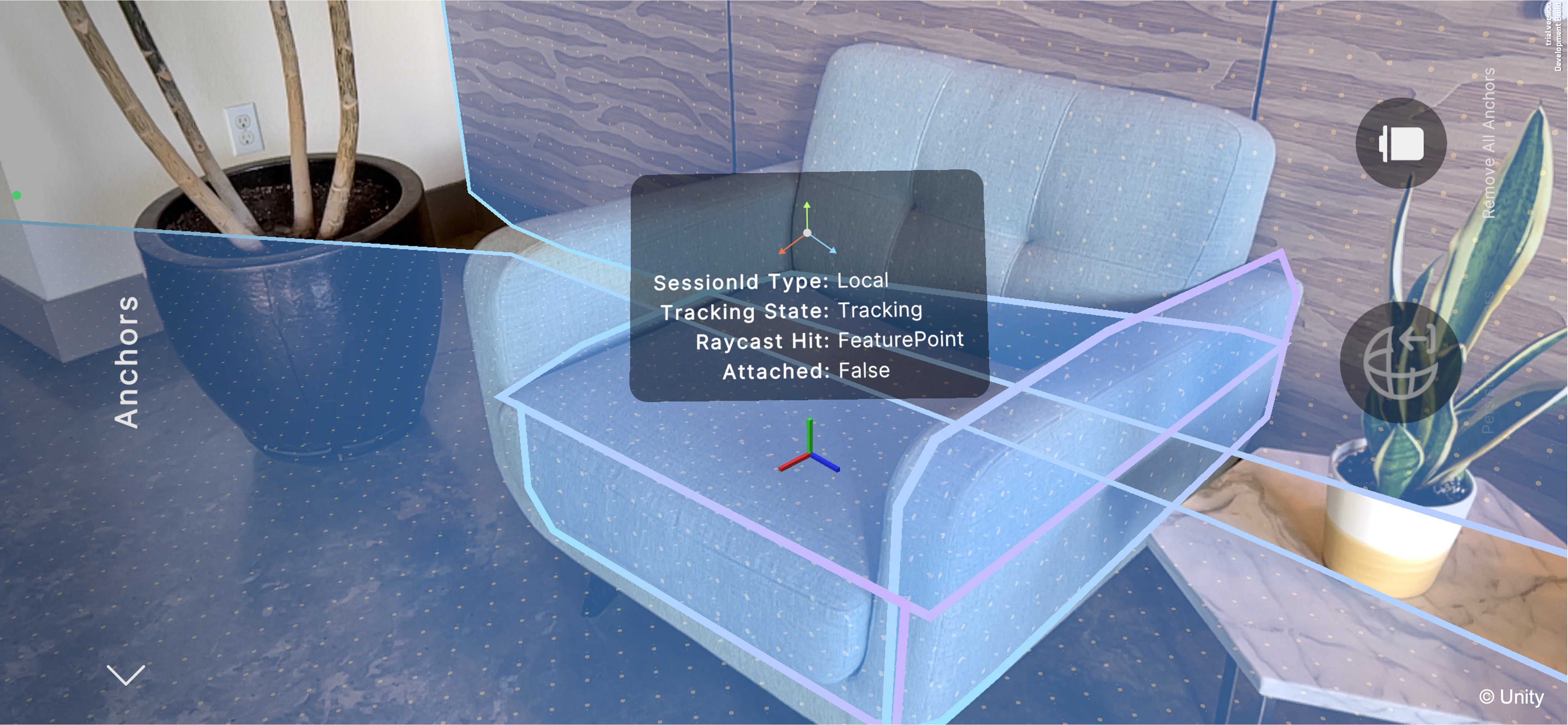
An anchor in AR Foundation is a trackable that represents a fixed Pose (position and rotation) in the real world, to which virtual content can be pinned. Anchors help virtual content stay aligned with the physical environment during a session, even when tracking fluctuates or the world coordinate system shifts. Without anchors, content tied only to transient scene transforms is more susceptible to drift when the AR session remaps space. Common mobile AR use cases include:
- Placing large or critical virtual objects on detected planes, such as XFactory’s V8 engine on a workshop floor or assembly bench.
- Stabilizing content after a tracked-image pose is converted to a world anchor when the marker represents a fixed location.
- Pinning spatial UI or guidance content in the physical workspace.
- Supporting training and maintenance overlays that must remain tied to a workspace pose during a session.
Anchoring stabilizes the pose; it does not automatically fix incorrect scale, pivot, or orientation. Verify the engine prefab’s pivot, local scale, and orientation so it rests correctly on the detected plane. For assembly or fit-check training, measure the real workspace and verify that the virtual engine appears at the intended real-world scale.
Best Practices
Anchors make AR content more stable, but they do not validate real-world geometry, machine state, or safety. For engineering use, verify real-world scale, anchor drift, tracking state, surface stability, and whether the physical object or marker can move independently from the anchor. While anchors enhance stability, they come with computational overhead:
- Avoid creating excessive anchors in a small area. Each anchor requires ongoing provider updates.
- Remove anchors when no longer needed. Destroy the
ARAnchorGameObject or use supported manager removal methods. For long sessions, track created anchors so they can be removed. Removing an anchor from the active scene is not the same as erasing a saved persistent anchor. - Parenting directly to detected planes. If plane detection is stable and you do not need separate anchor semantics, parenting to the plane transform can reduce overhead—but anchors are clearer for tap placement workflows.
Anchors have tracking states. If an anchor is
LimitedorNone, fade content, show a warning, pause precision interactions, or ask the user to rescan. Do not let users continue precision assembly or inspection tasks if the anchor state is not reliable.
Platform Support
Anchor support varies by provider. Do not assume all platforms expose the same persistence, sharing, or plane-attachment features.
| Provider / Platform | Anchor support | Course notes |
|---|---|---|
| Apple ARKit / iOS-iPadOS | Supported | Primary mobile tutorial path; persistence features vary |
| Google ARCore / Android | Supported | Primary mobile tutorial path; cloud/persistent workflows need additional provider support |
| XR Simulation | Supported | Editor testing for anchor logic |
| Meta Quest passthrough AR / OpenXR Meta provider | Provider-dependent | Validate anchors/spatial entities on device; not the main E5 hands-on path |
| Microsoft HoloLens / OpenXR | Comparison only | Context unless later assigned |
| Apple visionOS / Android XR / Magic Leap | Comparison only | Context unless later assigned |
Platform support changes over time. Verify current provider documentation before designing persistence or shared-anchor workflows.
Anchoring On Tap
To manage anchors in your scene, the ARAnchorManager component handles creating, tracking, and removing anchors via the underlying XRAnchorSubsystem, and raises events when anchors change. It is a trackable manager that listens to the underlying XRAnchorSubsystem, creates an ARAnchor GameObject for each tracked anchor, and fires a trackablesChanged event when anchors are added, updated, or removed.
Use Cases
Tapping to place anchors on detected planes offers a flexible way to interact with the physical environment in AR. While plane detection and hit testing can position virtual content, without anchoring, these objects may drift, disappear, or misalign when tracking data changes or environmental conditions vary. Here are scenarios where anchoring on tap significantly improves interaction and spatial stability:
- Mobile User Interaction: In dynamic environments where users walk around, anchors help tapped objects stay fixed to the intended surface during a session.
- Session Continuity: When environmental tracking temporarily degrades, anchored objects may retain their pose more reliably than unanchored content—but always monitor
trackingState. - Precision Placement: When users need to position objects with spatial accuracy (e.g., machinery layouts), anchoring supports consistent placement during the session.
- Environmental Changes: If surfaces shift slightly, anchors may help maintain relative placement, but revalidation is still required.
- Long-Term Installations: Persistence across days or app restarts requires provider-supported save/load workflows—not local anchors alone.
Implementation
Let’s use the V8 engine model from XFactory to showcase how ARAnchorManager can pin an object that’s spawned on tap on a plane.
- Scene Setup:
- Start from your existing
World Understanding.unityscene configured withAR Session,XR Origin,ARPlaneManager, andARRaycastManager. Save it asAnchors.unity. - Remove the
Robot ManagerGameObject from theHierarchy. - Select
XR Originand addAR Anchor Managerif it is not already present. - Create an empty GameObject named
Anchor Placement Controllerand attach the placement script there.
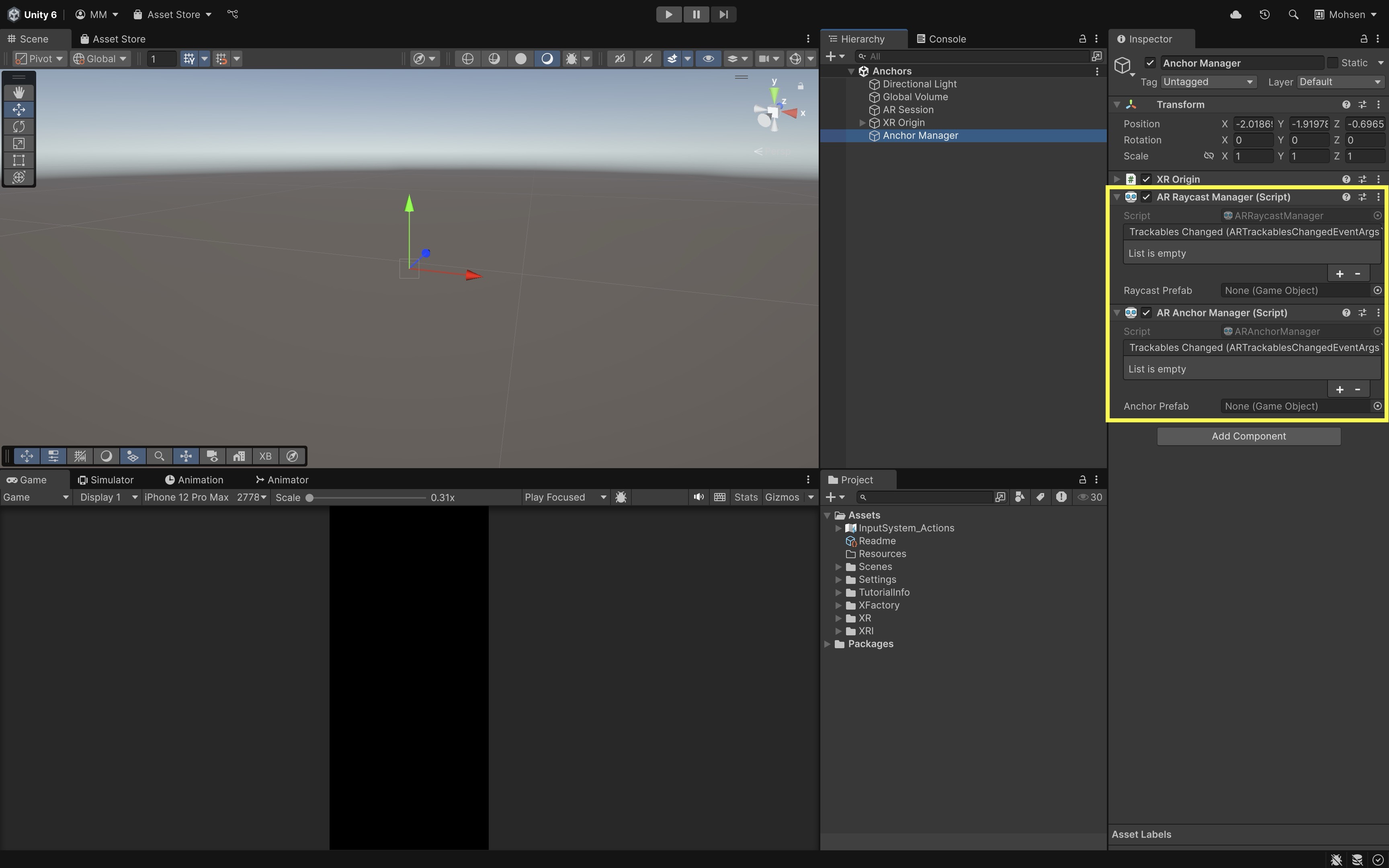
The
ARRaycastManagerdetects where on real-world surfaces the user taps. TheARAnchorManageronXR Origincreates and tracks anchors. Prefab fields can remain empty because the custom script instantiates the V8 engine after anchor creation. - Start from your existing
- Add and Configure
AnchorPlacer.cs:- Create a new script named
AnchorPlacer.cs. - Attach it to
Anchor Placement Controller.
 using System.Collections.Generic;
 using System.Threading.Tasks;
 using UnityEngine;
 using UnityEngine.InputSystem.EnhancedTouch;
 using UnityEngine.XR.ARFoundation;
 using UnityEngine.XR.ARSubsystems;
 using Touch = UnityEngine.InputSystem.EnhancedTouch.Touch;

 public class AnchorPlacer : MonoBehaviour
 {
     [SerializeField] private GameObject engineV8Prefab;
     [SerializeField] private ARRaycastManager raycastManager;
     [SerializeField] private ARAnchorManager anchorManager;
     [SerializeField] private ARPlaneManager planeManager;

     private readonly List<ARRaycastHit> hits = new List<ARRaycastHit>();
     private ARAnchor placedAnchor;
     private GameObject placedEngine;

     void OnEnable() => EnhancedTouchSupport.Enable();
     void OnDisable() => EnhancedTouchSupport.Disable();

     void Update()
     {
         if (placedEngine != null || Touch.activeTouches.Count == 0)
             return;

         var touch = Touch.activeTouches[0];
         if (touch.phase != UnityEngine.InputSystem.TouchPhase.Began)
             return;

         if (raycastManager == null || anchorManager == null)
         {
             Debug.LogWarning("AnchorPlacer: missing manager references.");
             return;
         }

         if (!raycastManager.Raycast(
                 touch.screenPosition,
                 hits,
                 TrackableType.PlaneWithinPolygon))
             return;

         PlaceAnchorAndEngine(hits[0]);
     }

     async void PlaceAnchorAndEngine(ARRaycastHit hit)
     {
         if (engineV8Prefab == null)
         {
             Debug.LogWarning("AnchorPlacer: engineV8Prefab not assigned.");
             return;
         }

         ARAnchor anchor = null;

         if (planeManager != null &&
             anchorManager.descriptor.supportsTrackableAttachments &&
             planeManager.GetPlane(hit.trackableId) is ARPlane plane)
         {
             anchor = anchorManager.AttachAnchor(plane, hit.pose);
         }
         else
         {
             var result = await anchorManager.TryAddAnchorAsync(hit.pose);
             if (result.status.IsSuccess())
                 anchor = result.value;
         }

         if (anchor == null)
         {
             Debug.LogWarning("AnchorPlacer: failed to create anchor.");
             return;
         }

         placedAnchor = anchor;
         placedEngine = Instantiate(engineV8Prefab, anchor.transform);
         Debug.Log("Anchor and V8 engine placed successfully.");
     }

     public void ClearPlacedAnchor()
     {
         if (placedEngine != null)
             Destroy(placedEngine);
         if (placedAnchor != null)
             Destroy(placedAnchor.gameObject);

         placedEngine = null;
         placedAnchor = null;
     }
 }
AttachAnchor(plane, pose)attaches to a detected plane when supported.TryAddAnchorAsync(pose)creates an anchor at a world pose and is the broader fallback pattern.- Plane attachment is provider-dependent and not available everywhere.
- Create a new script named
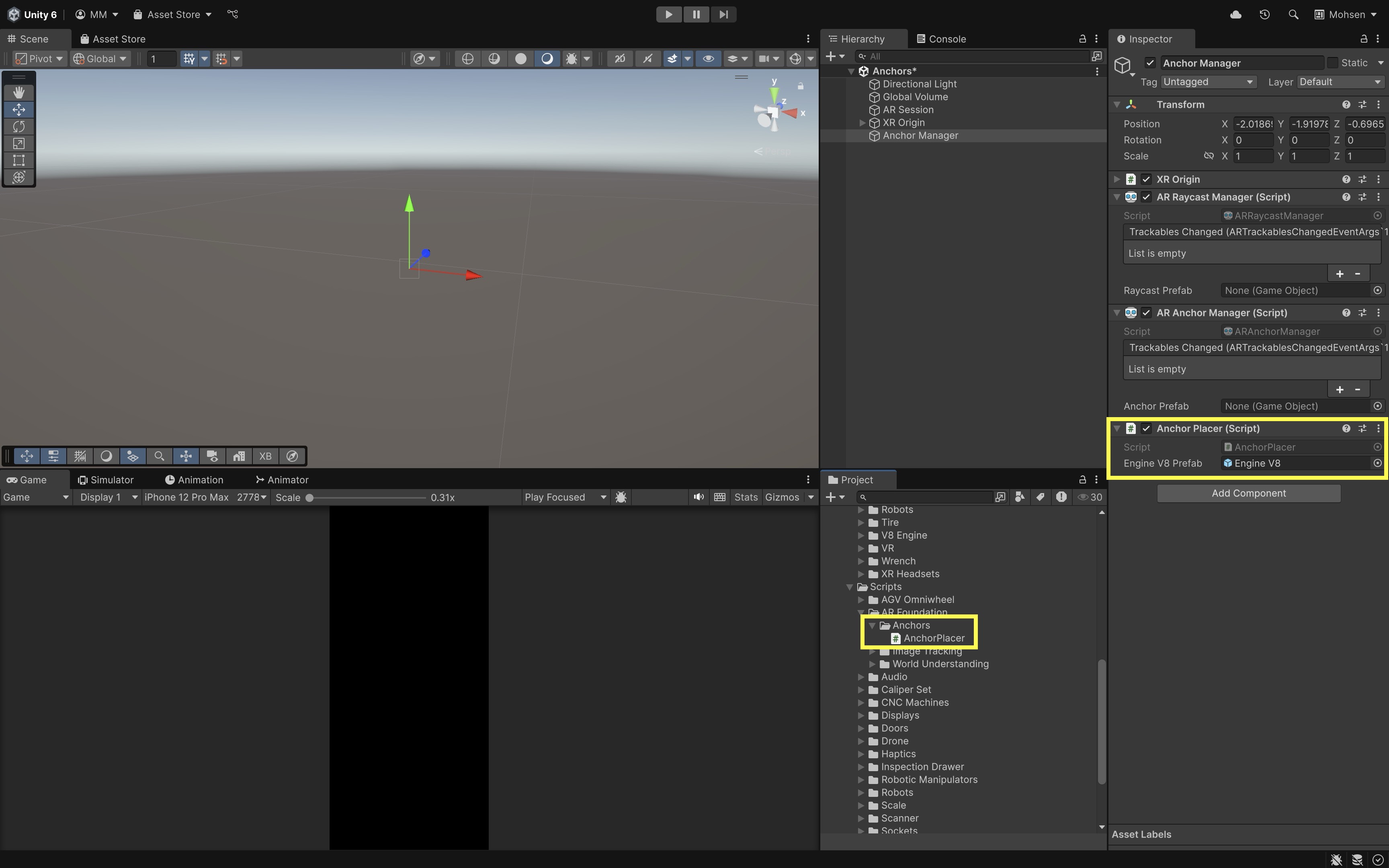
- Configure the Script:
- Assign
Engine V8,XR Origin’sARRaycastManager,ARAnchorManager, andARPlaneManager. - Verify the engine prefab’s pivot, local scale, and orientation so it rests correctly on detected planes.
- Use the course-standard Input System Package (New) player setting. Do not switch to
Bothunless a specific dependency requires compatibility mode.
- Assign
- Test the Behavior:
- Build and deploy to a supported iOS or Android device.
- Scan the environment until planes are detected.
- Tap a detected plane. The V8 engine should spawn at the tapped location, parented to an anchor.
- It should remain more stable than unanchored content during normal tracking updates, but anchors can still become limited, drift, or fail if the environment lacks features, lighting changes, or the provider loses tracking.
- Check the anchor’s
trackingStatebefore treating the content as trustworthy. - Move around, occlude the view briefly, and observe recovery behavior on device.
If stability is worse than expected, verify plane detection, raycast hits, and that
ARAnchorManagerremains enabled after startup.
Potential Extensions
Once tap-based anchoring works, consider:
- Reset/remove placed anchor: Call
ClearPlacedAnchor()from a UI button. - Save/load persistent anchors: Use provider-supported persistence APIs when available.
- Visualize anchor state: Show debug markers or warnings when
trackingStateis notTracking. - Limit anchor count: Track a list of created anchors for multi-placement apps.
- Placement/edit modes: Switch between placing, moving, and inspecting anchored content.
- Scale/rotation controls: Let users tune alignment after placement when engineering tasks require it.
Anchoring to Tracked Images
When using image tracking on supported mobile devices, virtual content is positioned relative to the detected image’s pose. Converting that pose to a world anchor may help stabilize content after brief tracking loss when the marker represents a fixed location—but it does not magically keep alignment if the physical image or object moves. This workflow depends on AR Foundation image tracking support. Do not assume the same image-tracking workflow is available for Meta Quest passthrough AR unless provider support is verified. If the marker is expected to move, keep content parented to the ARTrackedImage and respond to tracking updates instead of freezing it at an old world pose.
Use Cases
Anchoring virtual content to tracked images has practical applications on supported mobile devices. Image tracking depends on marker visibility and tracking quality. When a marker represents a fixed location, converting a tracked-image pose to a world anchor may help content remain more stable after brief tracking loss—but only while the anchor’s own trackingState remains reliable. Common scenarios include:
- Temporary Occlusion: Anchors may help content remain visible when a fixed marker is briefly occluded, but check
trackingStaterather than assuming perfect stability. - User Movement: Users may move away from a fixed marker. A world anchor can help content remain in place when the marker is out of view—only if the marker identifies a fixed location.
- Changing Lighting Conditions: Poor lighting can degrade image tracking. Anchors do not replace valid marker quality and tracking-state checks.
- Large Physical Spaces: In spacious environments, a fixed-marker anchor may help content stay pinned when the marker is not visible.
- Interactive Tasks: Maintenance or assembly tasks may require guidance without keeping the marker continuously in view—when the marker is fixed to the workspace.
- Environmental Dynamics: Vibrations or shifting perspectives can disrupt image tracking. Revalidate alignment before precision tasks continue.
- Multi-User Collaboration: Shared persistent anchors require provider-supported save/share workflows—not local anchors alone.
Implementation
To showcase this capability, build on the existing Image Tracking.unity scene to instantiate the Engine V8 prefab when a specific tracked image is detected, then attach it to an anchor created at the image’s pose. This can help when the marker represents a fixed location and tracking is Tracking.
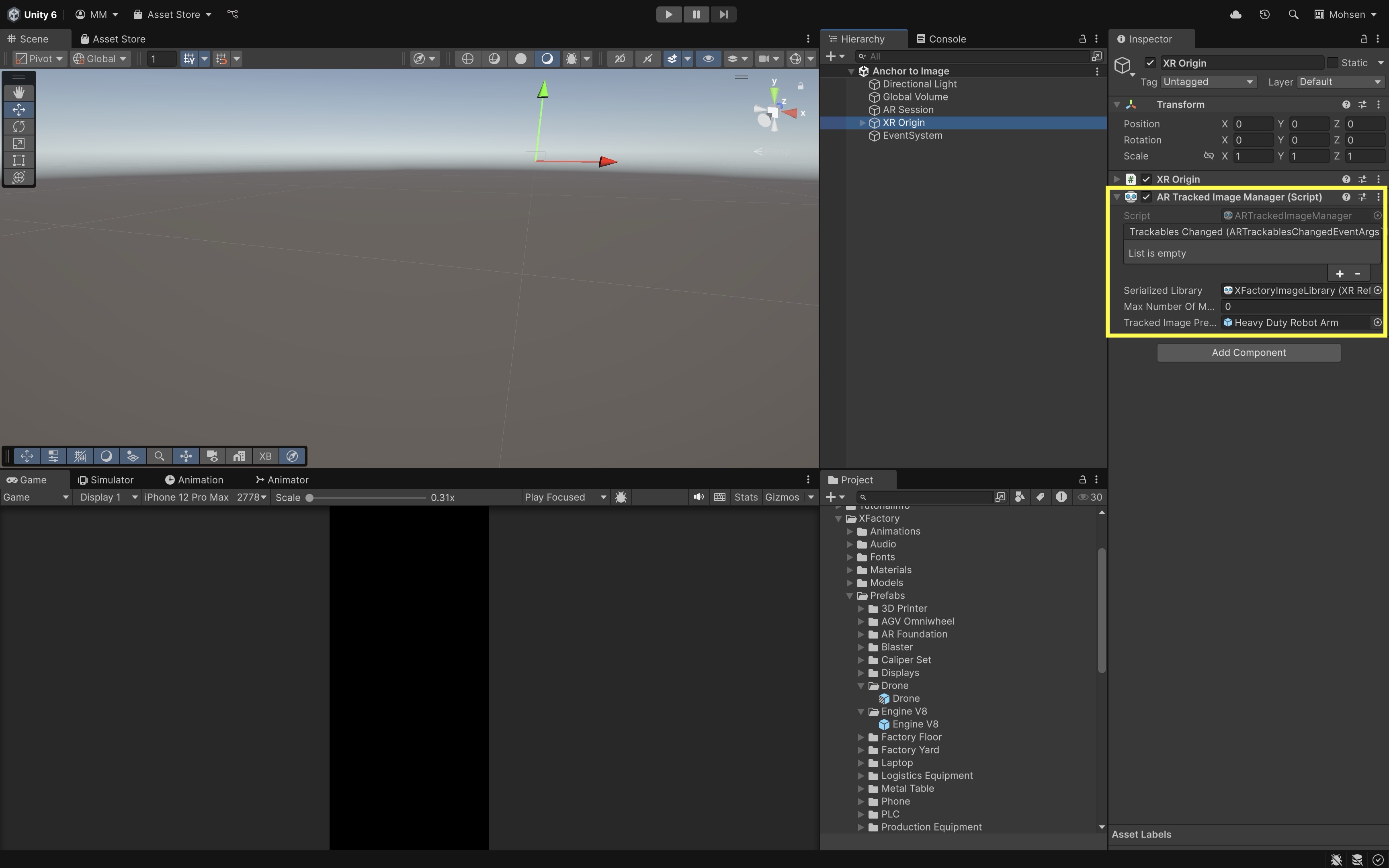
- Scene Prerequisites:
- Open
Image Tracking.unitywithAR Tracked Image Manager,XR Origin,AR Session, andAR Anchor ManageronXR Origin. - Ensure your
Reference Image Libraryincludes the target marker. - Save the scene as
Anchor to Image.unity. - Set
Tracked Image Prefabto None or a lightweight debug prefab only. The custom script instantiates and anchorsEngine V8.
- Open
- Add
TrackedImageAnchor.cs:- Create an empty GameObject named
Image Anchor Controllerand attach the script.
 using System.Collections.Generic;
 using System.Threading.Tasks;
 using UnityEngine;
 using UnityEngine.XR.ARFoundation;
 using UnityEngine.XR.ARSubsystems;

 public class TrackedImageAnchor : MonoBehaviour
 {
     [SerializeField] private ARTrackedImageManager trackedImageManager;
     [SerializeField] private ARAnchorManager anchorManager;
     [SerializeField] private GameObject engineV8Prefab;
     [SerializeField] private string targetImageName = "RobotMarker";

     private readonly Dictionary<TrackableId, ARAnchor> anchorsByTrackable =
         new Dictionary<TrackableId, ARAnchor>();

     void OnEnable()
     {
         if (trackedImageManager == null)
         {
             Debug.LogWarning("TrackedImageAnchor: manager not assigned.");
             return;
         }

         trackedImageManager.trackablesChanged += OnTrackablesChanged;
     }

     void OnDisable()
     {
         if (trackedImageManager != null)
             trackedImageManager.trackablesChanged -= OnTrackablesChanged;
     }

     void OnTrackablesChanged(ARTrackablesChangedEventArgs<ARTrackedImage> args)
     {
         foreach (var trackedImage in args.added)
             TryCreateAnchor(trackedImage);

         foreach (var trackedImage in args.updated)
             UpdateAnchorState(trackedImage);

         foreach (var trackedImage in args.removed)
             RemoveAnchor(trackedImage.trackableId);
     }

     async void TryCreateAnchor(ARTrackedImage trackedImage)
     {
         if (trackedImage.referenceImage.name != targetImageName)
             return;

         if (trackedImage.trackingState != TrackingState.Tracking)
             return;

         if (anchorsByTrackable.ContainsKey(trackedImage.trackableId))
             return;

         if (anchorManager == null || engineV8Prefab == null)
         {
             Debug.LogWarning("TrackedImageAnchor: missing references.");
             return;
         }

         var pose = new Pose(
             trackedImage.transform.position,
             trackedImage.transform.rotation
         );

         var result = await anchorManager.TryAddAnchorAsync(pose);
         if (!result.status.IsSuccess())
         {
             Debug.LogWarning(
                 $"Failed to create anchor for {trackedImage.referenceImage.name}."
             );
             return;
         }

         var anchor = result.value;
         Instantiate(engineV8Prefab, anchor.transform);
         anchorsByTrackable[trackedImage.trackableId] = anchor;

         Debug.Log(
             $"Anchor created for tracked image: {trackedImage.referenceImage.name}"
         );
     }

     void UpdateAnchorState(ARTrackedImage trackedImage)
     {
         if (!anchorsByTrackable.TryGetValue(trackedImage.trackableId, out var anchor))
             return;

         var engine = anchor.transform.childCount > 0
             ? anchor.transform.GetChild(0).gameObject
             : null;

         switch (trackedImage.trackingState)
         {
             case TrackingState.Tracking:
                 if (engine) engine.SetActive(true);
                 break;
             case TrackingState.Limited:
                 if (engine) engine.SetActive(true);
                 Debug.Log("Image tracking limited — verify alignment before precision tasks.");
                 break;
             case TrackingState.None:
                 if (engine) engine.SetActive(false);
                 break;
         }
     }

     void RemoveAnchor(TrackableId trackableId)
     {
         if (!anchorsByTrackable.TryGetValue(trackableId, out var anchor))
             return;

         Destroy(anchor.gameObject);
         anchorsByTrackable.Remove(trackableId);
     }
 }
Only create the anchor when
trackingStateisTracking. Cache anchors byTrackableIdto prevent duplicates on repeated updates. - Create an empty GameObject named
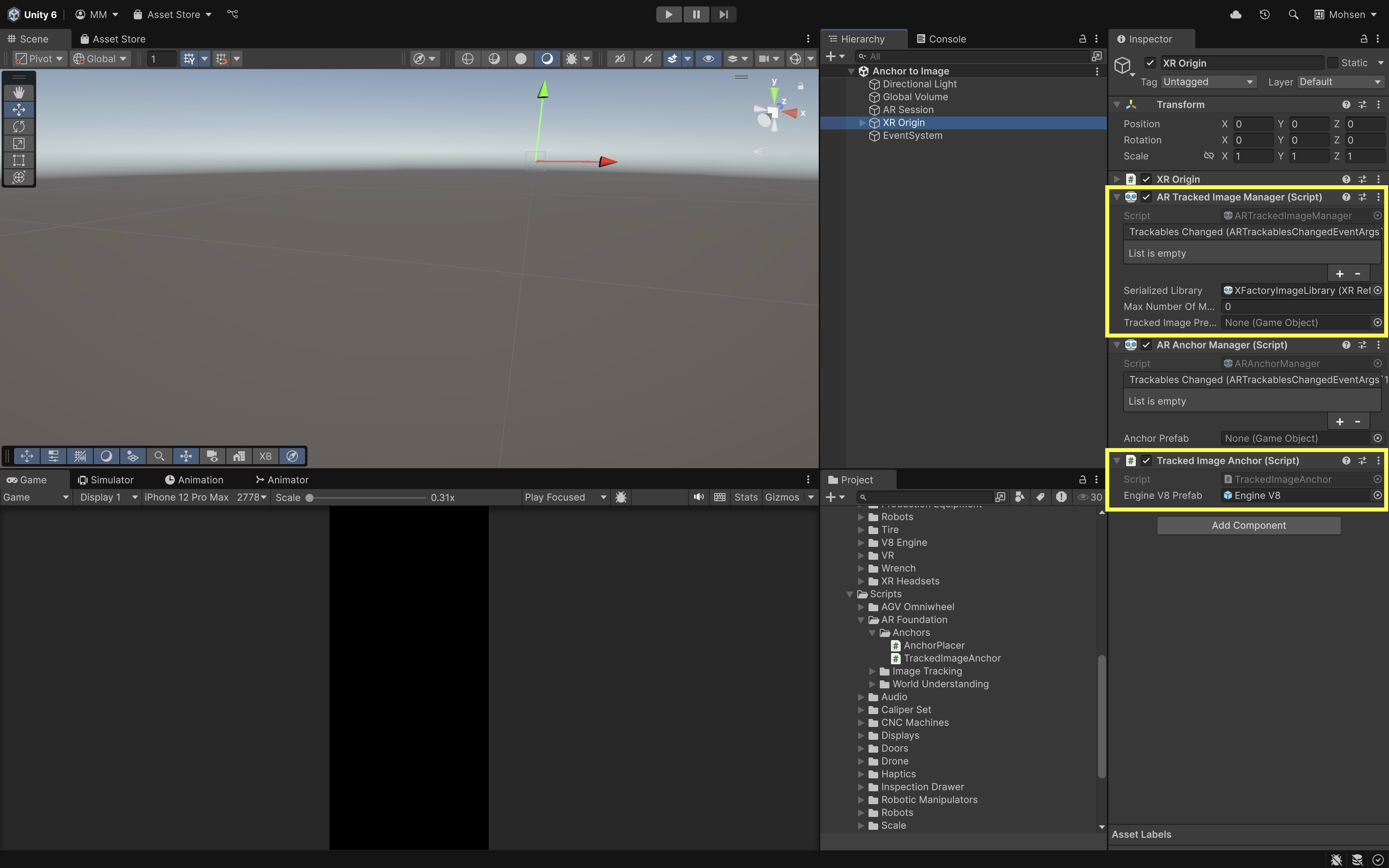
- Configure the Script:
- Assign
XR Origin’s managers,Engine V8, and the target image name from your reference library.
- Assign
- Test the Behavior:
- Build and deploy to a supported mobile device.
- Present the reference image to the camera.
- When tracking is
Tracking, the engine appears anchored at the image pose. - Move away or occlude the marker and observe tracking-state behavior. Do not assume perfect stability when tracking is
LimitedorNone. - If the marker may move, parent content to
ARTrackedImageinstead of converting to a fixed world anchor.
If the engine does not appear, verify the reference library, image name, camera permission, and that tracking reaches
Trackingbefore anchor creation.
Potential Extensions
- Load different prefabs by
referenceImage.name. - Save/load persistent anchors when the provider supports it.
- Support multiple fixed markers with separate cached anchors.
- Visualize anchor and image tracking states for debugging.
- Add reset/remove controls for image-derived anchors.
ARAnchor Component
The AR Anchor component represents a single tracked anchor in the AR session. You can add this component to an existing GameObject to request anchoring at that object’s current pose, but this approach is optional/advanced. Adding ARAnchor directly to an existing GameObject is valid but can fail. If the anchor request fails, the ARAnchor component may deactivate the GameObject. For beginner placement workflows, creating anchors through ARAnchorManager.TryAddAnchorAsync and parenting content to the returned anchor is usually clearer. Use ARAnchorManager.trackablesChanged to verify the anchor was actually added before trusting it. Key properties include:
trackingState: Indicates if the anchor is Tracking, Limited, or None.pending: Returnstruewhile the anchor is still being registered.destroyOnRemoval: Iftrue, the GameObject is destroyed when the anchor is removed from the session.
Use Cases
In some AR experiences, virtual objects are already present in the scene due to prior interactions, procedural generation, or pre-loaded content. Simply relying on their initial position in world space may not provide enough stability against tracking loss, environmental drift, or world map changes. Manually attaching an ARAnchor to these objects ensures their positions remain stable and consistent relative to the real world. Scenarios where manually attaching anchors is particularly useful include:
- Post-Placement Stabilization: After objects are dynamically spawned, anchoring can lock their pose to the environment when placement is complete.
- Interactive Content Repositioning: After users reposition content, an anchor can stabilize the new pose during the session.
- Session Recovery: Anchors may help content recover more gracefully after tracking interruptions, but persistence across app restarts requires separate provider support.
- Content Authoring Tools: AR editors can expose explicit “stabilize here” actions using anchors.
- Precision Training and Simulation: Anchored machinery models can remain at a workspace pose while tracking remains reliable.
Implementation
The main E5 tutorial uses TryAddAnchorAsync. The optional pattern below adds ARAnchor to an already placed GameObject. Verify on device that the anchor was accepted.
-
Add
AnchorOnGameObject.cs(optional):using UnityEngine; using UnityEngine.XR.ARFoundation; public class AnchorOnGameObject : MonoBehaviour { [SerializeField] private ARAnchorManager anchorManager; void Start() { if (anchorManager == null) { Debug.LogWarning("AnchorOnGameObject: ARAnchorManager not assigned."); return; } var anchor = gameObject.AddComponent<ARAnchor>(); anchorManager.trackablesChanged += OnTrackablesChanged; } void OnDestroy() { if (anchorManager != null) anchorManager.trackablesChanged -= OnTrackablesChanged; } void OnTrackablesChanged(ARTrackablesChangedEventArgs<ARAnchor> args) { foreach (var added in args.added) { if (added.gameObject == gameObject) Debug.Log("GameObject anchor added successfully."); } } } - Configure the Script:
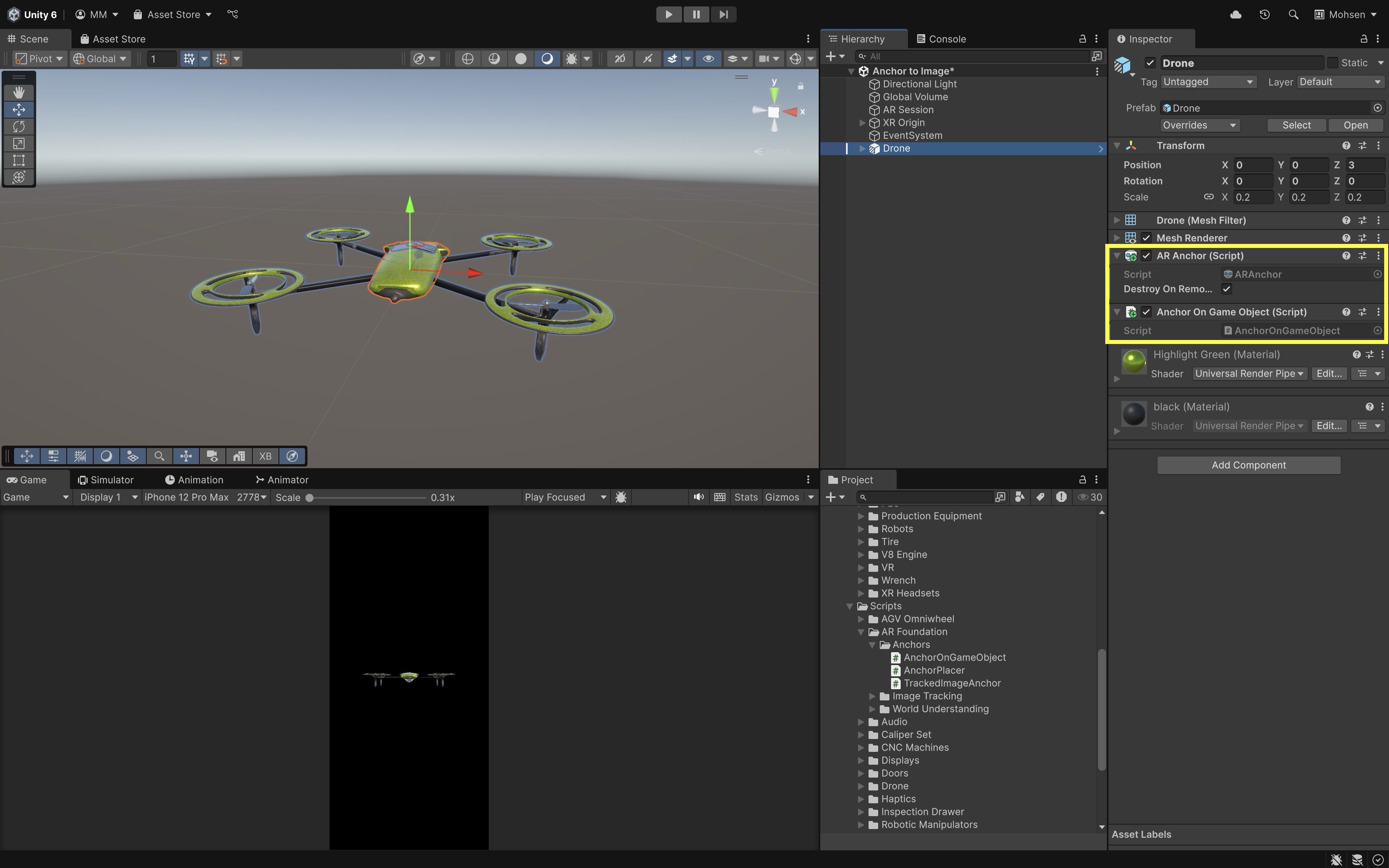
- Ensure
XR OriginhasARAnchorManager. - Add the script to a scene object you want to stabilize (for example, a placed
Droneprefab). - Assign the
ARAnchorManagerreference in the Inspector.
- Ensure
- Test the Behavior:
- Run on device and confirm the object remains active and the anchor appears in
trackablesChangedadded events. - If the object deactivates or never registers, prefer
TryAddAnchorAsyncinstead.
- Run on device and confirm the object remains active and the anchor appears in
Use this only when you intentionally need to anchor an existing GameObject in place. For tap placement and image-derived placement, prefer
TryAddAnchorAsyncand parent content to the returned anchor.
Potential Extensions
- Convert manual component anchoring into an explicit “lock placement” user action.
- Visualize pending/failed anchor requests.
- Fall back to
TryAddAnchorAsyncwhenAddComponent<ARAnchor>()fails.
Removing Anchors
Removing anchors keeps sessions clean and avoids unnecessary provider overhead. Removing an anchor from the active scene is not the same as erasing a saved persistent anchor. Two important concepts:
- Runtime/local anchor removal: Remove an anchor from the active session by destroying its
ARAnchorGameObject or using a supported manager removal method if your project API exposes one. - Persistent anchor erasure: Erase saved persistent anchors only when the provider supports save/load/erase APIs and your app tracks returned persistent anchor IDs.
Attach AnchorRemover.cs to a controller object such as Anchor Placement Controller and call RemoveRuntimeAnchor(anchor) from a reset button or workflow step.
using UnityEngine;
using UnityEngine.XR.ARFoundation;

public class AnchorRemover : MonoBehaviour
{
    [SerializeField] private ARAnchorManager anchorManager;

    public void RemoveRuntimeAnchor(ARAnchor anchor)
    {
        if (anchor == null)
        {
            Debug.LogWarning("AnchorRemover: no anchor provided.");
            return;
        }

        if (anchorManager != null && anchorManager.TryRemoveAnchor(anchor))
        {
            Debug.Log("Anchor removed via ARAnchorManager.");
            return;
        }

        Destroy(anchor.gameObject);
        Debug.Log("Anchor removed by destroying GameObject.");
    }

    // Optional / provider-dependent persistent erase workflow.
    public void ErasePersistentAnchor(string persistentAnchorId)
    {
        Debug.LogWarning(
            "Persistent anchor erase requires provider-supported save/load APIs " +
            $"and stored ID: {persistentAnchorId}"
        );
    }
}
You might call
RemoveRuntimeAnchor(anchor)when a reset button is pressed, a training step is cancelled, or the user moves to a new workstation. Pair runtime removal withAnchorPlacer.ClearPlacedAnchor()in the tap-placement tutorial.
Testing and Validation
Validate anchors on the hardware and environments your app targets:
| Test target | What to verify |
|---|---|
| XR Simulation | Tap logic, anchor creation flow, removal/reset logic |
| iOS/ARKit device | Plane raycast, anchor creation, tracking-state changes, lighting, drift, permissions |
| Android/ARCore device | Plane raycast, anchor creation, tracking recovery, thermal/performance, supported persistence/cloud features if used |
| Meta Quest passthrough AR | Provider-supported anchors, passthrough visibility, headset input, saved/shared anchors if used, comfort/safety |
| Real environment | Marker/plane stability, reflective surfaces, feature-poor areas, scale, drift, occlusion, physical hazards |
AI-generated anchor examples often mix old event names, legacy touch input,
FindObjectOfType, tracked-image prefab misuse, and unsupported persistence assumptions. When anchors fail, verify provider support,AR Session,XR Origin,ARAnchorManager, raycast hits, tracking state, permissions, and whether the anchor was actually added before rewriting the script.
Key Takeaways
- Anchors stabilize AR content at meaningful real-world poses, but local anchors are not automatically persistent across app restarts.
- Tap-based anchors should be created from validated raycast hits and tracked so they can be reset or removed.
- Plane-attached anchors, image-derived anchors, and persistent anchors are provider-dependent and should not be assumed to work the same on every device.
- Anchoring from an image marker is useful only when the marker represents a fixed location; moving markers should continue using image tracking updates.
- Engineering AR must monitor anchor tracking state, drift, scale, surface stability, and physical safety before trusting anchored overlays.